# Orders (https://docs.serviata.ru/en/docs/storefronts/orders)
Where requests from your storefronts arrive — finding one, reading it, and moving it through its statuses.
**Orders** in the sidebar is where everything placed on your storefronts lands. One list, all
storefronts, newest first — this is the screen a duty manager keeps open.
## The list [#the-list]
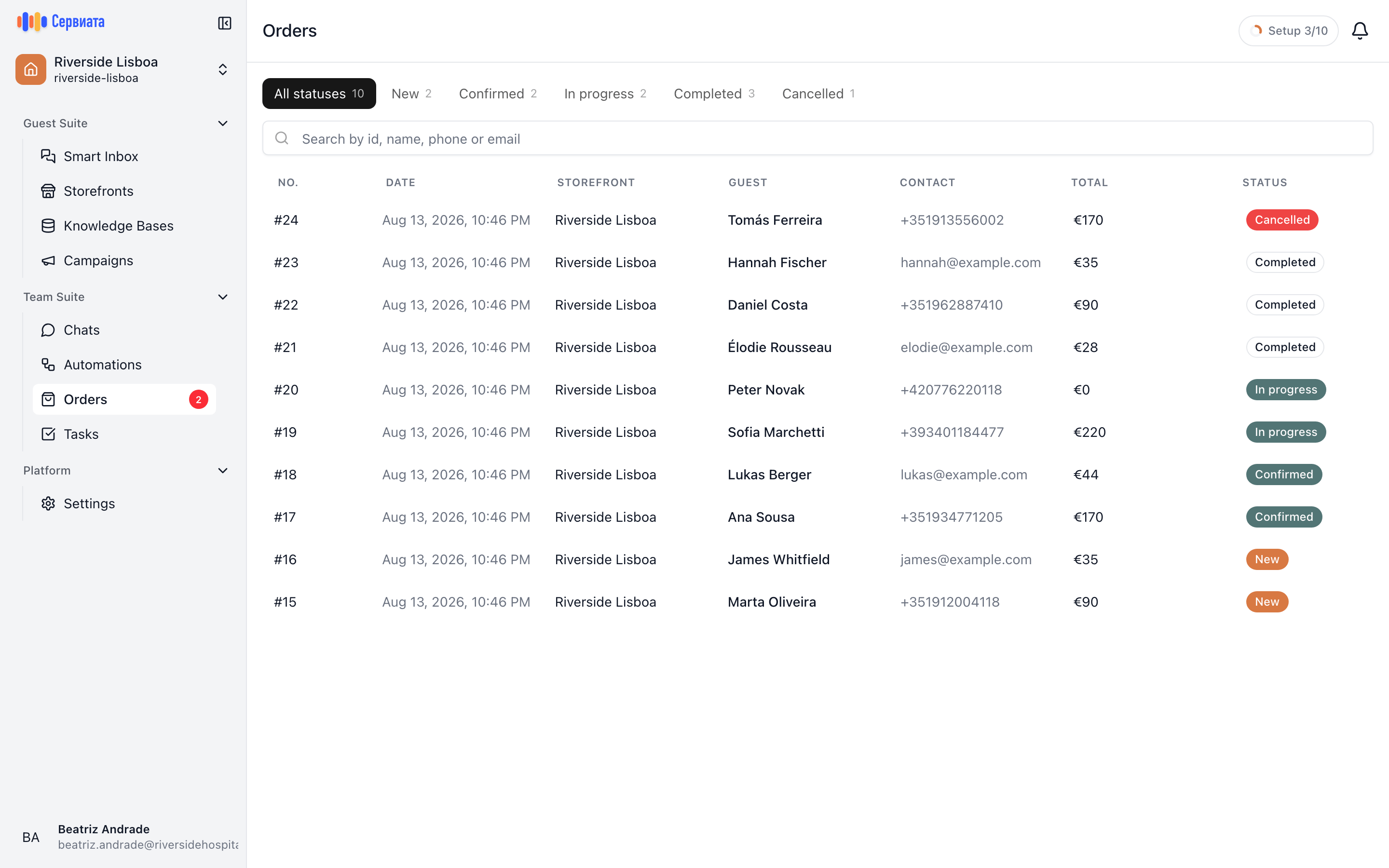
1. Status tabs with counts, search, and the storefront filter
2. Newest first, the order number in the first column
| Column | What it holds |
| -------------- | ------------------------------------------------------------------------------------- |
| **No.** | The order's number — short, and the one the guest was shown. First column on purpose. |
| **Date** | When it was placed. |
| **Storefront** | Which storefront it came from. |
| **Guest** | The name they gave. |
| **Contact** | The phone or email they left. |
| **Total** | The order's total, in that storefront's currency. |
| **Status** | Where it has got to — see below. |
Above the list are the tools for finding one order among many:
* **Status tabs**, each carrying a count, so "how many are still New" is answered without filtering.
* **Search** by number, name, phone or email — the field says so. A guest on the phone gives you any
one of those, and any one is enough.
* **Storefronts** filter, for a workspace running several pages.
* **Clear filters**, once you've narrowed too far.
Your filters live in the page address, so a filtered view can be bookmarked or pasted to a colleague
and it opens the same way for them.
If the list comes up short, check the filters before concluding that nothing was ordered — the page
tells the two apart, and clearing them brings everything back.
## Reading an order [#reading-an-order]
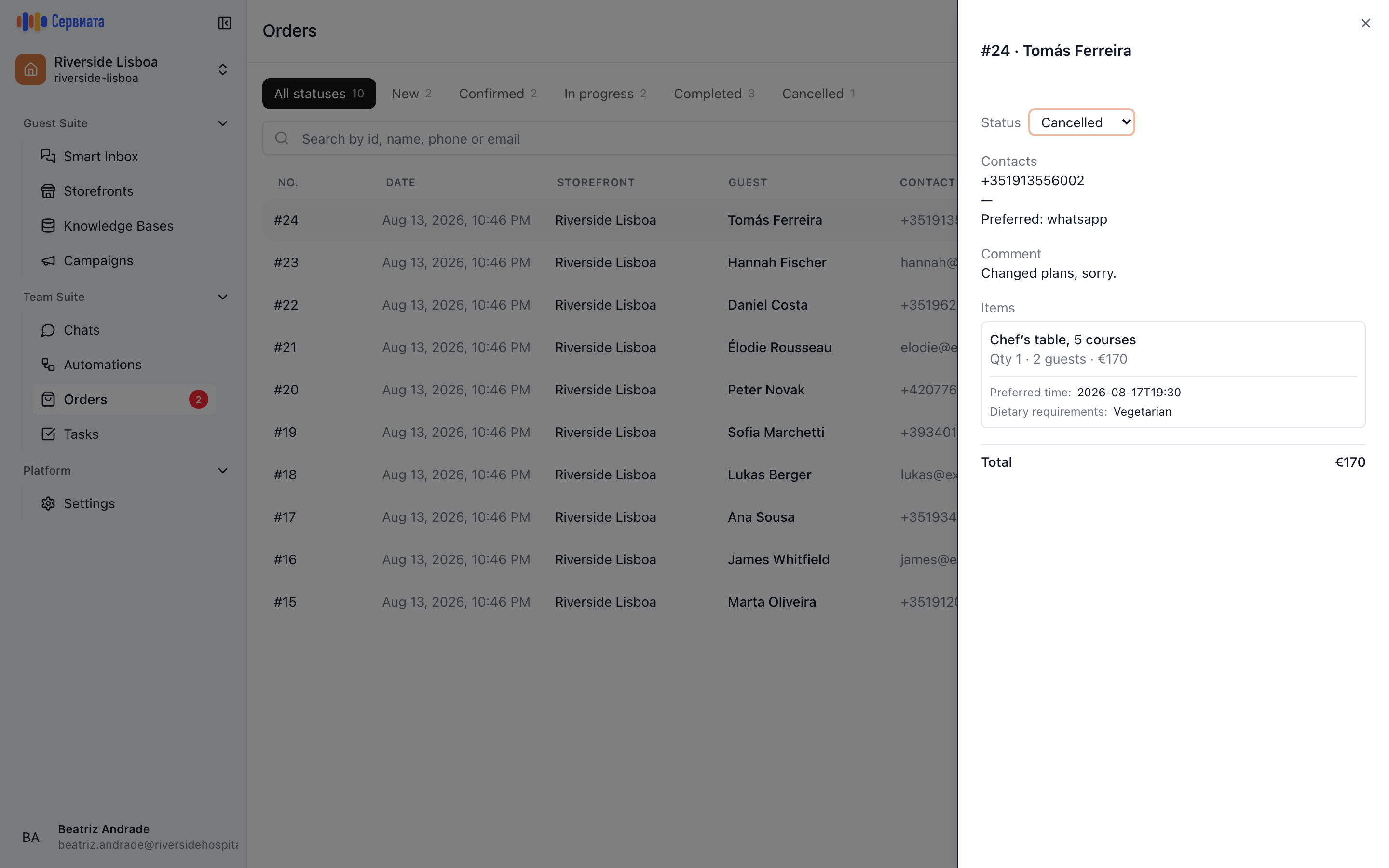
1. Status, contacts, comment, and every line with its answers
Clicking a row opens the order beside the list:
* **Status**, as a dropdown — this is where it gets changed.
* **Contacts** — everything the guest left, and **Preferred:** the channel they asked to be
contacted through. Use that one.
* **Comment** — their free text, if they wrote any.
* **Items** — each service with its quantity, the number of guests where the price is per person,
and **the answers to your custom fields** underneath. The room number, the flight, the allergies —
they're here, on the line they belong to, not in a separate place.
* **Total**.
## Moving an order along [#moving-an-order-along]
Five statuses, and they read as the life of a request:
| Status | Means |
| --------------- | ------------------------------------------------- |
| **New** | Just arrived. Nobody has looked at it. |
| **Confirmed** | You've accepted it and the guest can count on it. |
| **In progress** | Being carried out right now. |
| **Completed** | Done. |
| **Cancelled** | Not happening — by the guest or by you. |
Changing the dropdown saves immediately and confirms with "Order status updated". The guest sees the
same status in [their own list of requests](https://docs.serviata.ru/en/docs/storefronts/guest-view/), so moving an order to **Confirmed** is
also how you tell them it's accepted, without writing a message.
These statuses are a promise to the guest more than they are a filter for you. A team where
**Confirmed** means "the spa has a slot booked" runs smoothly; one where somebody presses it to
mean "I've seen this" produces guests who arrive expecting a treatment that was never scheduled.
Decide, then tell the shift.
## Who works with orders [#who-works-with-orders]
Orders is the workspace owner's and admins' screen: they see every order and can move any of them
along. Orders themselves follow the storefront's scope, so an order placed on a property's storefront
belongs to that property.
The item carries a badge with the number of orders still sitting at **New** — the fastest way to
notice that something came in while you were on another screen.
## If Orders isn't in your sidebar [#if-orders-isnt-in-your-sidebar]
**Orders** is a module, and a module is switched on per workspace. While it is off the section is
not merely hidden — nobody in that workspace can reach orders at all, the owner included.
Storefronts is on for a new workspace out of the box; Orders is not. So a storefront can be
published, and guests can place orders, while your team still has no screen to read them on — the
orders are being recorded, not lost, but nobody is being shown them. If you have just published
your first storefront, check that **Orders** is in your sidebar before you hand the link out.
Switching it on is not something you can do from inside the app: it is set for your workspace by the
Сервиата team. Write to [support@serviata.ru](mailto:support@serviata.ru) naming your workspace and ask for the Orders module
to be enabled — it takes effect immediately, and every order placed while it was off is there
waiting.