Change log
The record of every change to roles and access — who changed what, for whom, where and when.
Every change to who can do what is written down: a role granted or removed, a person invited, deactivated or brought back, a role created, changed or deleted. The Change log is where you read it — the answer to "who gave the night auditor access to campaigns, and when?".
Open it from the Team tab with the Change log button. The page is headed "Access change log" — "All role and access changes in the workspace." for the workspace's owner and admins, or "Changes in “Riverside Lisboa Hotel”." for a property manager, who sees their own hotels' entries only — and it says up front that "Entries cannot be edited or deleted."
Reading an entry
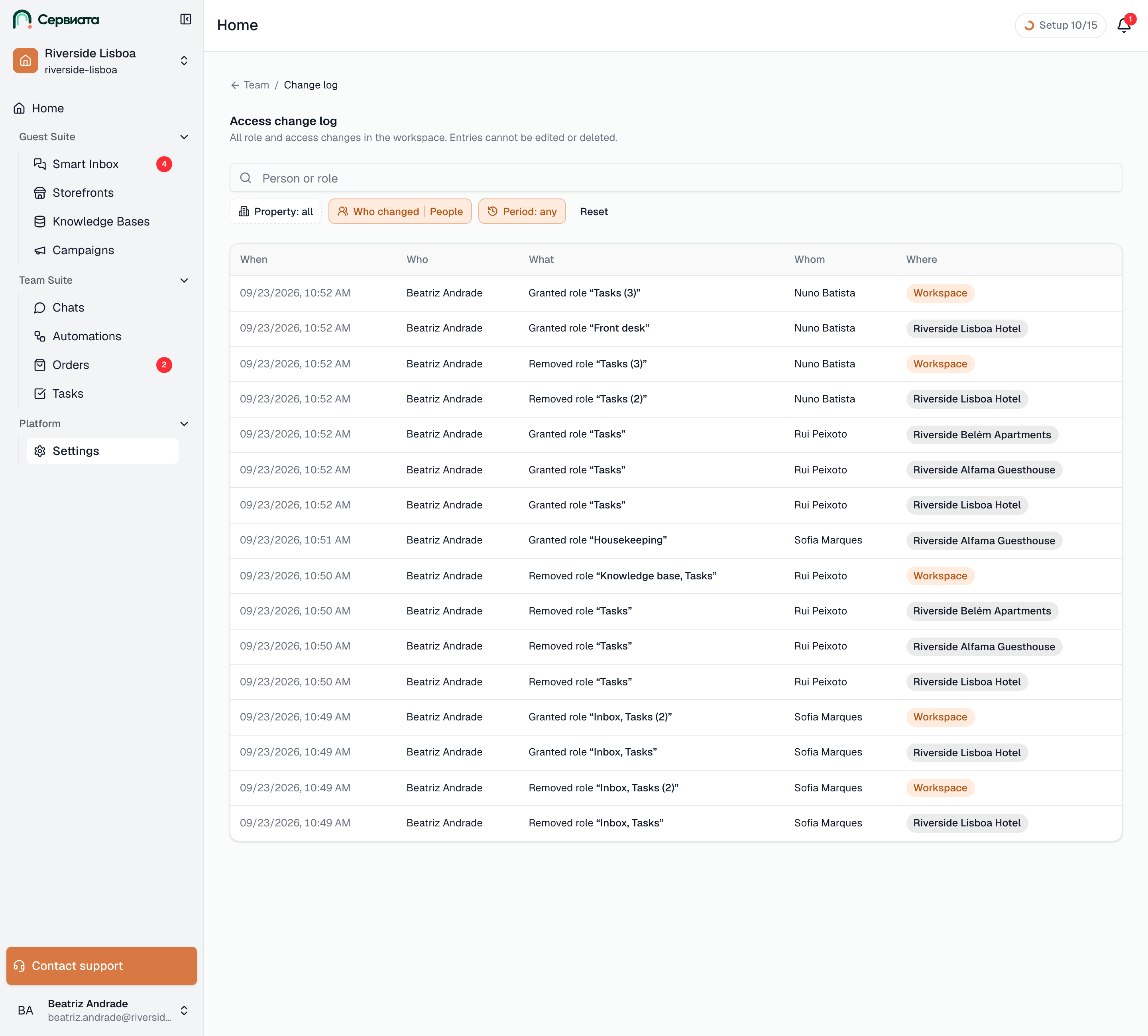
- 1
- The filters above the table, and the entries themselves — newest first
| Column | What it shows |
|---|---|
| When | Date and time. |
| Who | The person who made the change, or a System badge for a change no person made. |
| What | The action, and in quotes what it concerned — the role, or for a changed role its permissions: "Changed role “Night auditor · +Sends campaigns, −Deletes tasks”". |
| Whom | The person it concerned. |
| Where | The property, All properties, or Workspace. |
The actions you will see:
| Entry | Meaning |
|---|---|
| Invited | An invitation was sent. |
| Granted role / Removed role | A role was added to or taken from someone, in the place shown under Where. |
| Deactivated / Activated | An account was switched off, or back on. |
| Created role / Changed role / Deleted role | A role was built, edited or removed. A changed role lists what was added (+) and removed (−). |
| Changed workspace level | Someone was made an administrator, or an administrator was made a member again — "Member → Administrator". |
| Revoked invitation | A pending invitation was cancelled. |
Finding what you need
The log opens on the last 30 days, newest first, and loads more as you scroll. Above it:
- a search box, Person or role — it narrows what is already loaded, so with a long log you may need Load more ("n entries loaded") to reach older matches;
- Property — one property, or all;
- Who changed — People or System;
- Period — Last 7 / 30 / 90 days, Any time, or a From / To range.
Reset clears them all. The filters are part of the page's address, so a filtered view can be bookmarked or sent to a colleague. "No entries match the filters." means the log has entries, just none for that combination; "No changes yet." means it is empty.
Who can read it
The workspace's owner and admins see everything. Anyone whose role includes Sees the team in a property sees that property's entries. Everyone else gets "You don’t have access to the change log."
One person's history
The same entries, filtered to one person, are on the History tab of their page — open their row on the Team tab. It is the quickest way to answer "how did this person end up with the access they have?".