Who is handling it
Taking a conversation, handing it over with a note, and why an owner matters more than it looks.
Every conversation is either owned by somebody or lying in Unassigned. That single fact drives the buckets, and it is the difference between a guest being answered twice and not at all.
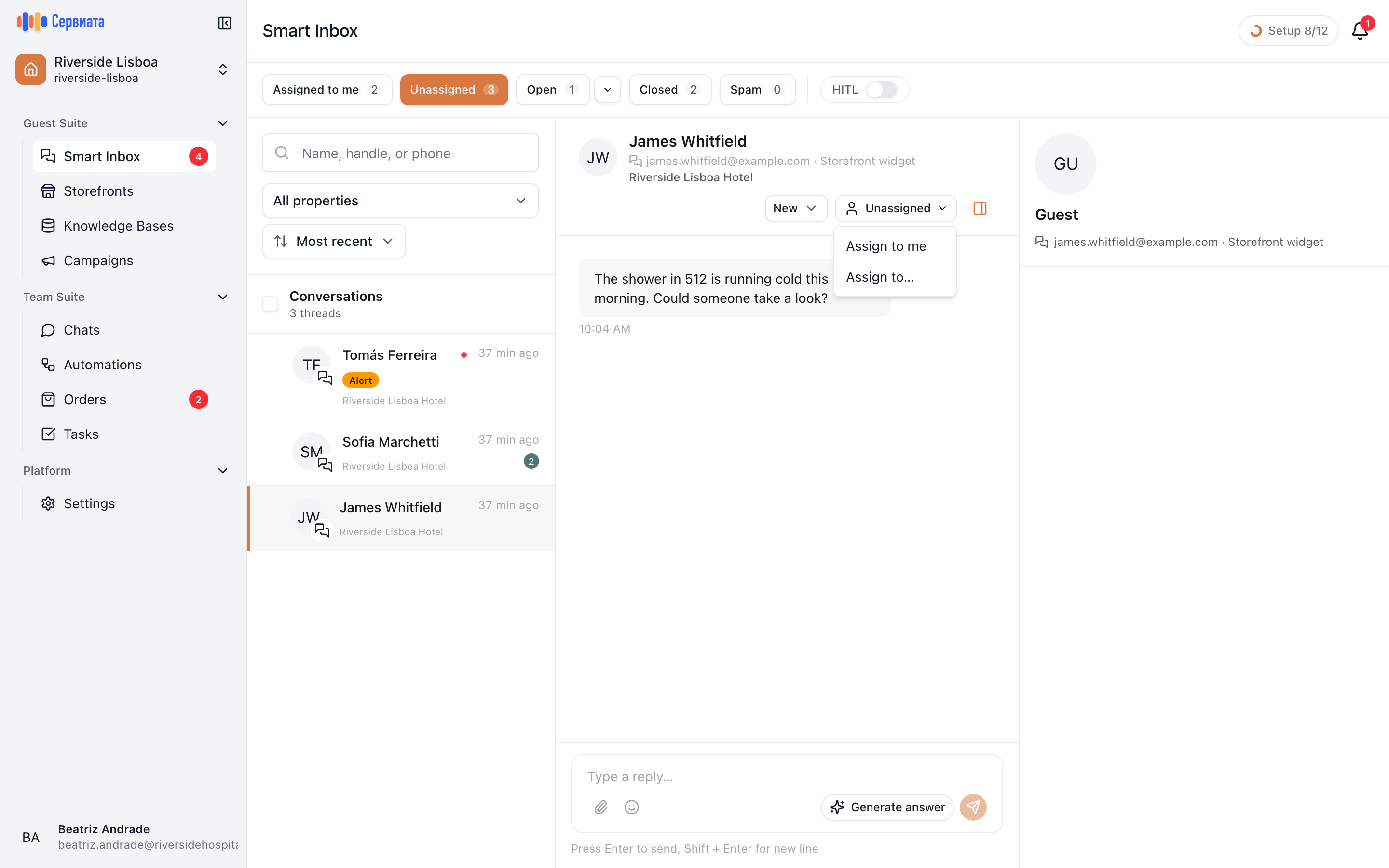
- 1
- Who owns this conversation — and where you take or hand it over
Taking one
The button in the conversation header shows the current owner, or Unassigned. Open it:
- Assign to me — you own it. It moves out of Unassigned into your Assigned to me.
- Unassign — you're putting it back for somebody else.
- Assign to… — hand it to a named colleague.
Take a conversation before you start typing. It costs a click and prevents the two failures that make a guest write "is anybody there?": two people answering at once, and everybody assuming somebody else has it.
Taking a conversation also stops the assistant answering it on its own — see what the assistant does.
Handing it over
Assign to… opens a small form with two fields:
- Team member — who takes it next. Only people with inbox access to this conversation's property are offered, so you can't hand a guest to somebody who can't open the thread.
- Handoff note — optional, and the most useful field on this screen: "Promised a late checkout at 14:00, needs the front desk to confirm."
The handover is recorded in the thread itself as a notice between the messages, so the next person reads why it arrived rather than guessing.
Write the note as if you're going off shift — because you are
"FYI" is not a handoff note. What was promised, what is still open, and what the guest is waiting for: three short clauses save the next person from reading forty messages, and save the guest from being asked the same question twice.
Not everyone can reassign to other people — that needs the Assigns conversations to colleagues permission in your role. Anyone who can reply can take a conversation themselves and put it back.
Doing several at once
Hovering a row in the list reveals a checkbox. Tick a few and a bar appears above the list with the count and what you can do to all of them:
- Assign… — to yourself, to nobody, or to a colleague.
- Mark status… — see statuses.
- Close — for the run of conversations that need nothing more.
- Clear — drop the selection.
This is the tool for a Monday morning queue: sweep the obvious ones into the right hands, then work what's left one at a time.