Adding and editing locations
The Location dialog, room numbers by range, and how renaming, moving and removing behave.
Once a property is mapped, everything else is done from the map itself: the Location button at the top adds anything anywhere, and the + on a row in the structure list adds inside that row.
The Location dialog
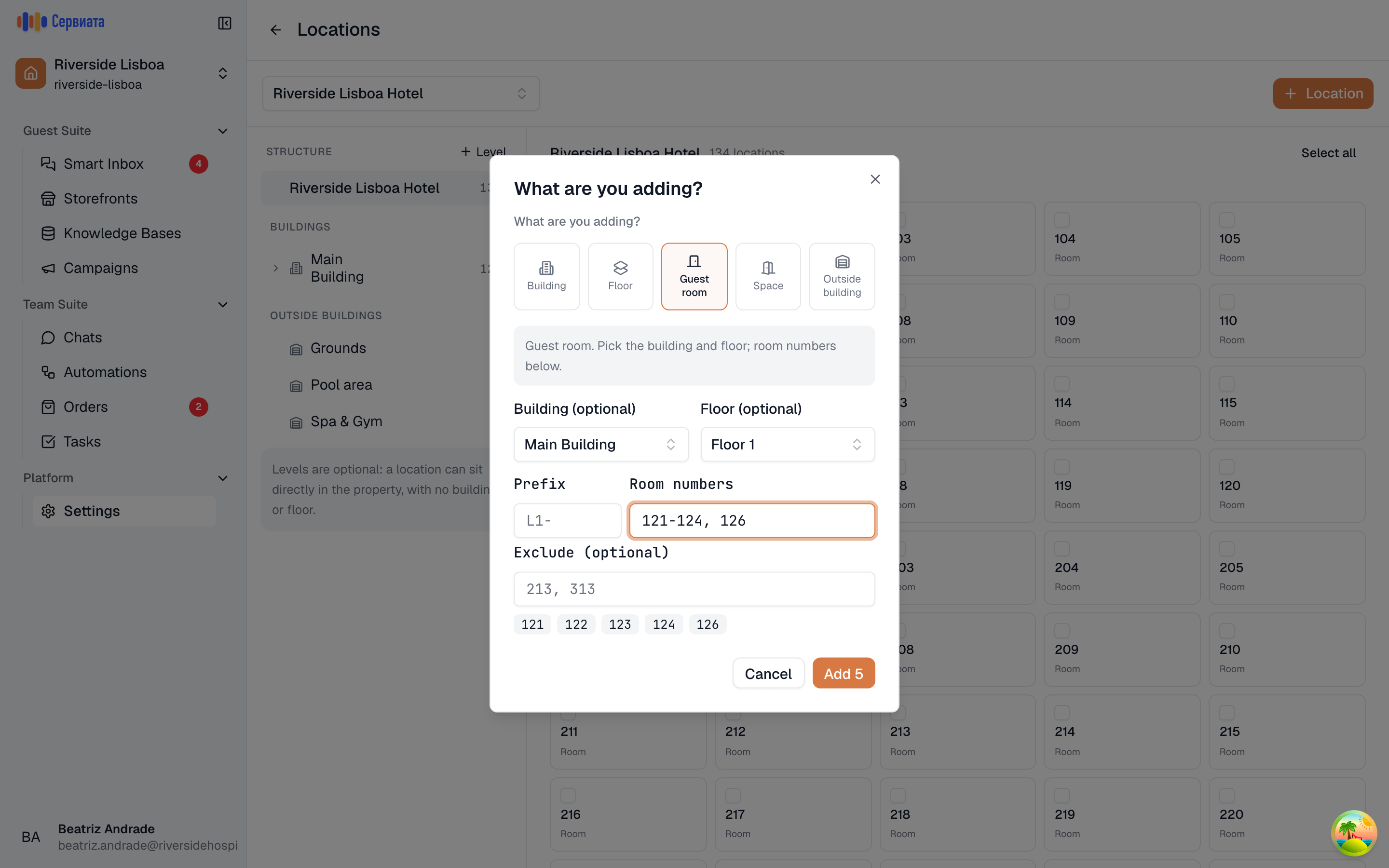
- 1
- 2
- 3
- What you are adding — the choice that decides the rest of the dialog
- Where it goes: the building, and the floor within it
- Room numbers as ranges and single values, previewed as you type
The dialog opens on What are you adding? and the five kinds sit across the top. Picking one rewrites the rest of the form, and a line under the row says what that kind is for — Guest room. Pick the building and floor; room numbers below.
Where the dialog is opened from decides what it starts on. Location at the top of the page opens on Building; the + on a building starts a floor inside it, and the + on a floor starts rooms on it.
Where it goes
- A floor must name its building.
- A guest room takes a building and, optionally, a floor — a room with no floor sits directly in the building.
- A space first asks Where is it located? — in a building, or in an outside area — and then offers the pickers for that choice. Both are optional: leave them empty and the space sits directly in the property.
- A building and an outside building are always at the top, so they ask for nothing but a name.
One at a time, or two hundred
Buildings, floors and outside areas take a single Name.
Guest rooms and spaces take a list instead, and that list expands:
101-104becomes 101, 102, 103, 104.101-104, 110, Lobbymixes ranges, single numbers and plain names — anything that isn't a numeric range is taken exactly as written.- Prefix (guest rooms) goes in front of every result:
L1-givesL1-101. - Exclude (guest rooms) drops numbers you don't have:
213, 313. - Room type (optional) (guest rooms) gives every room being added a type, e.g.
DBLorSuite. It is kept apart from the number and shown muted beside it, so room412stays412.
Every name that will be created appears as a chip under the field before you commit to it, and the button counts them: Add 4. Up to 3000 locations can be created at once; a range bigger than that asks you to narrow it.
Two locations in the same place cannot share a name — a second "Lobby" on the same floor is refused with A location with this name already exists here. The same name on a different floor is fine.
Renaming
Hover a row in the structure list or a tile and press the pencil, or open a room's card and press it there. The dialog is titled Edit "name" and holds the name — and, for a guest room, its Room type (optional). Save becomes available once something has changed, and confirms with Location updated; the new name appears everywhere the location is used, including on tasks that were attached to it earlier.
A guest room linked to a PMS may be managed by it; then its name and type change only in the PMS — see Mapping PMS rooms.
Moving
Tick one or more locations and press Move on the bar at the bottom of the screen, or open a location's card and use the move button beside the pencil. The dialog — Move "412", or Move 3 locations — says Choose a new parent for the selected locations. and offers only the places they can go:
- a floor into another building;
- a guest room into a building, onto a floor, or directly into the property;
- a space into a building, onto a floor, into an outside area, or directly into the property.
Pick the property itself for the top level. Buildings and outside areas always sit at the top and cannot be moved — the dialog says These locations cannot be moved. A selection of several kinds is offered only the places every one of them can go.
A floor moves with everything on it, and tasks attached to a moved location stay attached to it. Move confirms with Locations moved. If a name is already taken at the destination, the move is refused — A location with this name already exists here — and nothing is moved.
Removing
The bin icon — on a structure row, on a tile, or on a location's card — asks to confirm: This will remove "Floor 4" and everything nested under it. Removing a building removes its floors and their rooms with it, so check what is underneath before confirming.
Tasks that named the removed location keep their history. It stays on them, greyed out and marked Location deleted when you hover it, so a task's record still says where the work happened.
To remove several locations at once, tick them and use Delete on the bar that appears — see Finding your way around. A removed guest room that was linked to a PMS is not brought back by later syncs — see Mapping PMS rooms.