Locations on tasks
Attaching locations to a task, reading them in the list, and filtering by them.
A map earns its keep on tasks. Attach locations to a job and the list can be read by place, a room can show its own history, and "the tap in 118" stops being something only the person who wrote it understands.
Attaching them
- 1
- 2
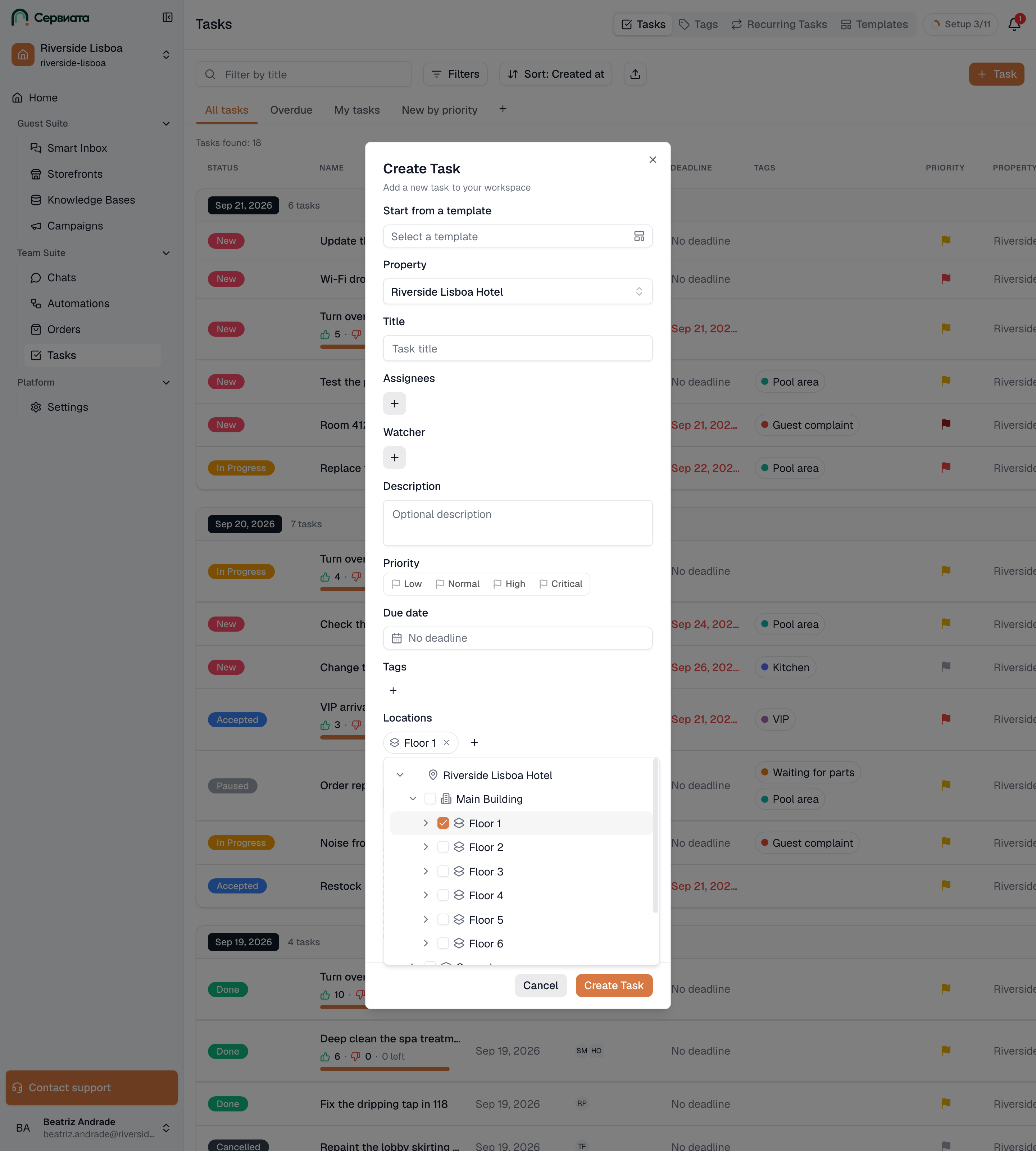
- The Locations field — chips for what is attached, and + to add more
- The property tree, with a checkbox at every level
Both the new-task form and an open task have a Locations field. Choose the property first: it decides whose tree you are picking from, which is why the field stays inactive until one is set. A task that belongs to the whole workspace rather than to a property has no locations.
Press + and the property's tree opens. Expand as far as you need and tick anything — a room, a whole floor, a building, an outside area. There is no limit of one: a task can carry several, and ticking a floor is how one job covers everything on it.
Each attached location becomes a chip. The chip shows the location's own name; hovering it shows the full path — building, floor, then the room — so two rooms called "Storage" in different buildings can be told apart. The × on a chip removes it.
Attaching or removing a location is recorded in the task's history, as added 412 as a location, so a task whose place changed shows when that happened and who did it.
Reading them in the list
The task list has a Locations column. It shows the first location as a chip and counts the rest
as +2, and the same hover trick gives the full path. See
The task list for the other columns.
Filtering by them
Filters above the list has a Locations row that works exactly like the field on a task, except it is not tied to one property: pick locations from any property you have access to and the list narrows to tasks that name them. Combine it with the other filters — a status, an assignee — the way you would any of them.
The reverse view is on the map itself: a location's card lists every task that named it, which is the same information read from the other end. See Finding your way around.
Recurring tasks
A recurring schedule takes locations the same way, and every task it creates carries them. A weekly "Check the pool water" attached to the pool terrace lands on the terrace every week without anyone re-picking it. See Recurring tasks.
When a location is removed
Removing a location does not rewrite the tasks that used it. It stays on them, greyed out and marked Location deleted when you hover it, so the record of where the work happened survives the map being reorganized.