Recurring tasks
Schedules that create tasks for you — setting the pattern, reading the preview, and pausing one.
Half of a hotel's work is the same work as yesterday: test the pool water, check the fire doors, deep-clean the spa on Mondays. A recurring task is a schedule that creates those tasks for you, already assigned, on the days you say.
They live under the Recurring Tasks tab on the Tasks page.
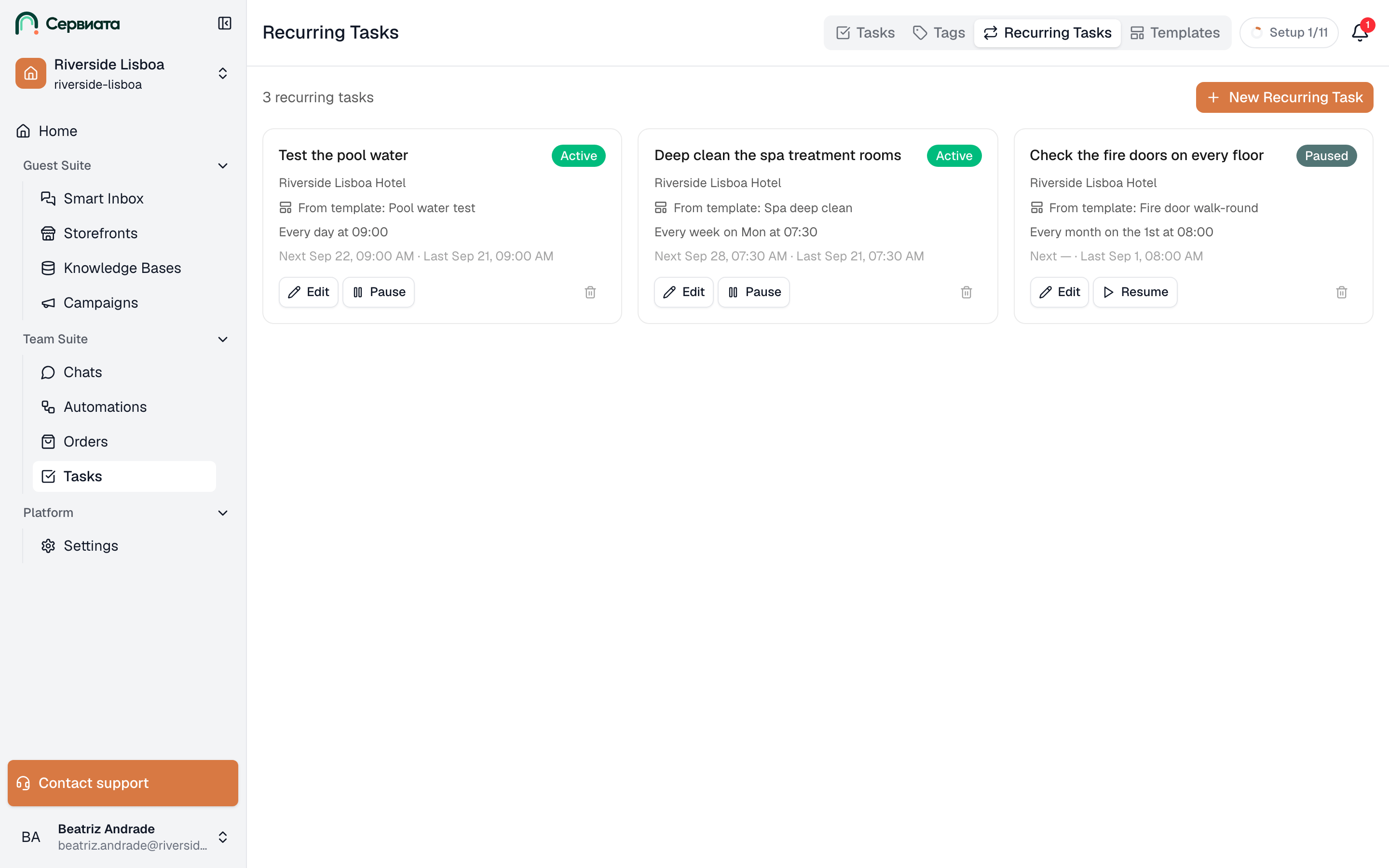
- 1
- 2
- How many schedules exist, and the button that adds one
- One card per schedule: its pattern, when it last ran, when it runs next
Reading a schedule
Each card holds:
- The title of the task it creates, and a badge — Active, Paused or Completed.
- The property it belongs to, or Workspace.
- The pattern in words: "Every week on Mon at 07:30". This is the line to check when something is arriving at the wrong time.
- Next and Last — when it will fire, and when it last did, on the schedule's own clock. A paused schedule has no next run.
- From template: Arrival prep, when the schedule was started from a task template. If that template has since been deleted the line reads Removed template — the schedule itself is unaffected and keeps running.
Clicking a card opens the schedule in full: every field it will put on the task, the pattern in words, the next and last run, its files, and the same Edit, Pause, Resume and Delete buttons. It's a read-through, not a form — nothing changes until you press Edit.
Creating one
New Recurring Task opens a form in two halves: what the task should say, and when it should appear.
Starting from a template
The first control of the form is a task template picker. Pick one and the whole first half fills itself in — title, assignees, priority, tags, locations, checklist and files — and you're left with the pattern to set. Clear template empties that half again and leaves the pattern alone.
The schedule remembers which template it came from and shows it on the card, but nothing is linked after that: editing the template later leaves every existing schedule exactly as it was. Change the title in this form and the schedule is created without the link at all; a note under the field says so.
What the task says
Property, Title, Assignees, Watcher, Description, Priority, Tags, Locations and Apply checklist — the same fields as a normal task, filled in once. Every task the schedule creates comes out with them already set, which is the real saving: the checklist is attached and the right shift is assigned before anyone touches it.
Locations pins the schedule to a place — the pool terrace, a floor, a whole building — and every task it creates arrives already attached to it. See Locations on tasks.
Attachments are the standing paperwork: the chemical sheet, the test form, the photo of what "finished" looks like. Files put on the schedule are copied onto every task it creates, so the person doing the round has them without going looking. Adding or removing a file on the schedule changes what future tasks get, and leaves the tasks it already made alone.
The property field takes several properties at once, and the form tells you what that means — "3 recurring tasks will be created with identical settings". Each property gets its own schedule, with assignees and tags narrowed to the people and labels that exist there. The same goes for groups: with one property you can pick the groups that belong to it as well as the whole-workspace ones, and with several properties selected only the whole-workspace groups are offered — no single group belongs to all of them.
When it appears
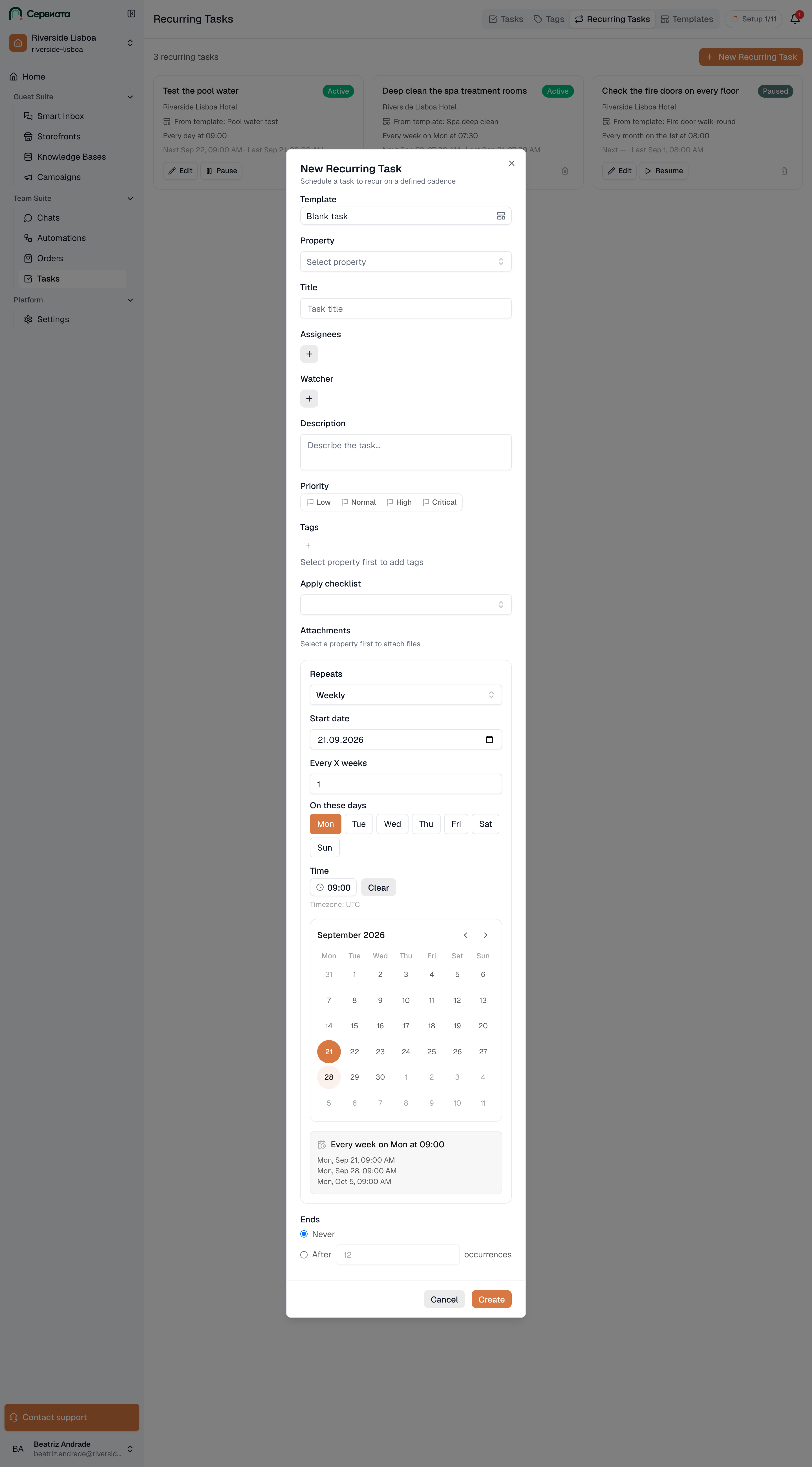
- 1
- 2
- Start from a template — the schedule takes its content from the template
- Repeats, start date, the pattern, and the time of day
- Repeats — Daily, Weekly, Monthly or Yearly. Each one reveals what it needs: weekly asks for weekdays, monthly for a day of the month or a position ("the last Friday"), yearly for the months as well.
- Repeats every — the interval. Every 2 weeks, every 3 months.
- Start date — nothing is created before it.
- Time — the hour the task appears, with the workspace's time zone printed underneath it. To change the zone itself, go to workspace settings; a schedule is not the place to fix a wrong clock.
- Ends — Never, or After a number of occurrences. A schedule that has produced its last occurrence shows as Completed.
Read the preview before you save
Under the pattern sits a calendar with the matching days marked and, beneath it, the rule written out in words plus the next three dates it will fire. Recurrence rules are easy to get subtly wrong — "every second Monday" and "the second Monday of the month" are different schedules — and those three dates are how you catch it in ten seconds rather than in three weeks.
The clock a schedule runs on
A schedule keeps the time zone it was created in. The Time field names that zone underneath it while you fill the form, and the schedule runs on that clock from then on: a 07:30 round stays at 07:30 there, summer and winter alike.
Two things follow, and both catch people out:
- Changing the workspace's time zone does not move schedules that already exist. It decides the zone for the ones you create next — see General. To put an existing schedule on a different clock, recreate it.
- Next and Last on the card are read on the schedule's clock, while every other time in the app follows your own device. A schedule belonging to a hotel in another country therefore shows an hour the rest of your screen disagrees with. That hour is the one it will actually fire at.
If a schedule needs to run on a different clock from the one the form shows, change the workspace's zone first and create the schedule afterwards.
What the schedule produces
At the appointed time the schedule creates an ordinary task: it appears in the list, it can be edited, commented on and closed like any other, and the people assigned are told about it — their activity feed says Recurring task created.
Editing the schedule afterwards changes future tasks only. Tasks that already exist are untouched, which is what you want — yesterday's round is a record, not a draft.
Pausing, resuming, deleting
Each card carries its own controls, for people whose access covers managing schedules:
| Button | What it does |
|---|---|
| Edit | Changes the content or the pattern. |
| Pause | Stops it creating tasks. Nothing is lost; Next empties out. |
| Resume | Starts it again. |
| Delete | Removes the schedule. |
Pause is for a wing closed for refurbishment, a pool drained for the season, a service suspended for a month. Reach for it before Delete — deleting means rebuilding the pattern from scratch when the work comes back.
Deleting says what will happen in plain words, and counts it: Schedule stops. 34 tasks created by this rule stay: 12 not started · 5 in progress · 17 done or cancelled. A schedule that never ran says so instead. You never lose the history of work that was actually done — and the count is worth reading before you confirm, because "5 in progress" means five people are mid-job.