What the guest sees
The public page from the other side — browsing, the service page, the cart, checkout and the guest's own request history.
Everything you assemble in the editor exists for this: the page a guest opens from a QR code in a room or a link in a message. Knowing what they go through is what lets you answer "where do I put my room number?" without opening the page yourself.
No account, no app, no password. They open the link and can order.
Browsing
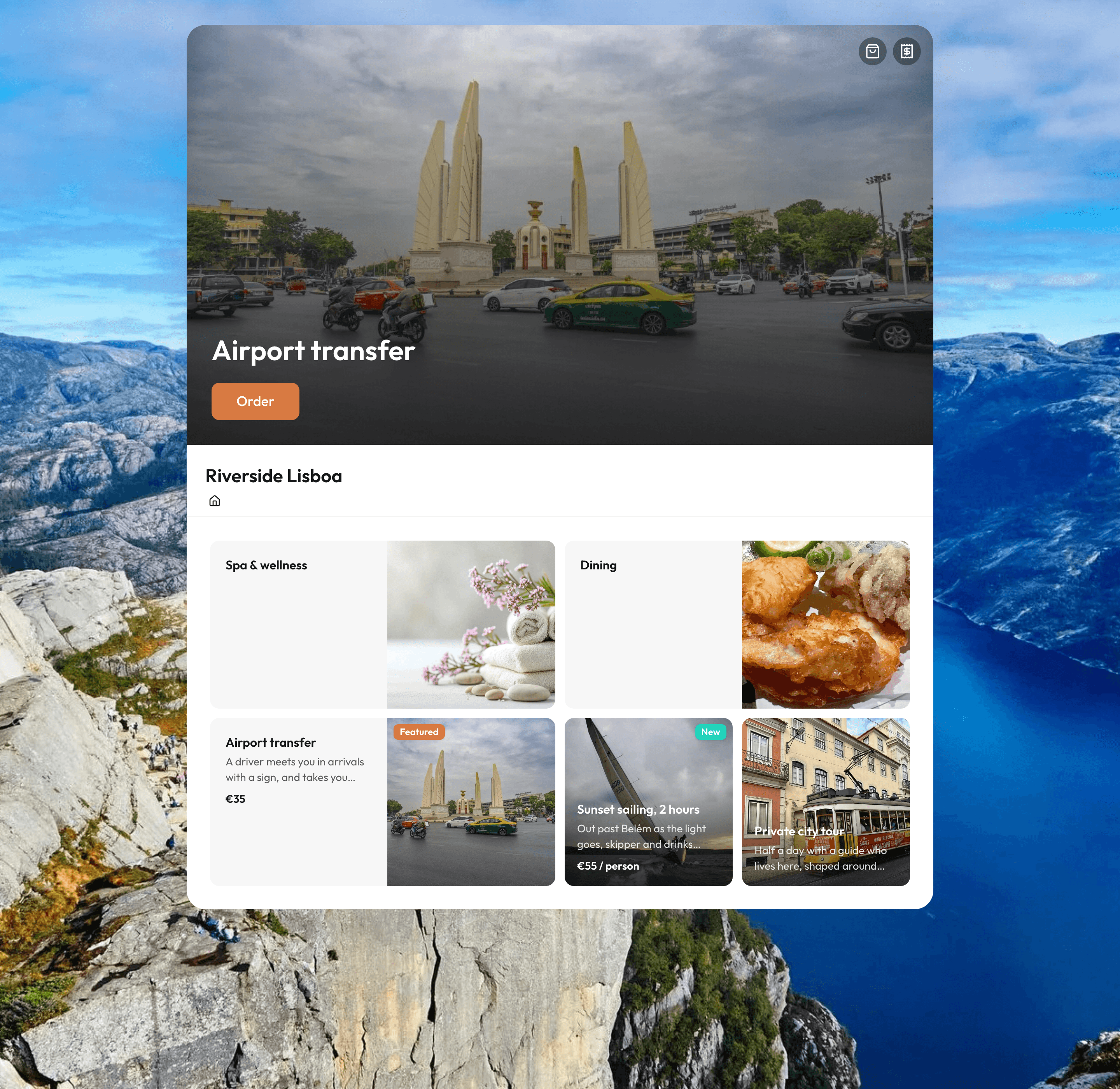
The page opens with the header photograph. If a service has Promo on header switched on, a banner showing that service appears instead of the default image, with an Order button on the banner itself.
Below it are the cards, laid out in the grid that was arranged for them. Tapping a group opens that group's contents; the Main breadcrumb returns to the top level. Tapping a service opens its page.
Two error states are worth recognising: guests report both as "your link is broken".
- "Storefront not available" — with "This page might be unpublished or no longer exists." The guest is on a storefront that is a draft, or whose link ending has changed.
- "Service not available" — a service page has been opened for a service the storefront no longer has.
The service page
The photos come first — swipeable when a service has several — then the title, the description and the price. A service priced On request says "Price on request" instead of an amount, and a per-person price is shown with / person after it.
Below that, everything the guest has to supply before ordering:
- Choose date and time, when the service asks for a date — offering only what the service's schedule allows.
- Number of people, when the price is per person.
- Your custom fields, in the order you listed them. A required one that's empty is named in the error, so the guest is told which question they missed rather than just being refused.
Then one button, whose wording follows the pricing:
| Pricing | Button |
|---|---|
| Fixed price or per person | Add to cart |
| On request | Send request |
At the bottom, the services you set as Recommended appear under "You might also like".
The cart and checkout
The cart is titled Your request — deliberately, because this is a request your team confirms, not a paid basket. In it the guest can change quantities, change the number of guests, Edit an item to revisit its questions, Clear cart, or Continue browsing.
Checkout asks for the minimum needed to reach a person back:
- Name — required.
- Phone and Email — at least one, as the form says: "Provide at least a phone number or email so we can reach you."
- Preferred contact channel — how they'd rather be contacted, which arrives with the order.
- Comment — optional, "Any details we should know".
Place request sends it, and the guest lands on "Request received" — "We will get back to you shortly via your preferred channel." — with the reference number of the request, the date and what they ordered.
The number they'll read out
The reference on that screen is the order's number, and it's the first column of your Orders list. When a guest phones and says "my request is number 42", that is the number they mean.
The guest's own history
My requests shows a guest everything they've placed and what state each is in — New, Confirmed, In progress, Completed, Cancelled — the same states your team sets in Orders. It means "has anyone seen my request yet?" doesn't have to become a phone call.
Buy again puts a past request back in the cart. Services you have since removed can't come back, and the guest is told which ones.
Talking to you instead of ordering
If you switched on any contact channels, a Contact us button opens them. With the on-page chat enabled, Chat with us opens a conversation right there: the guest leaves a name and a way to reach them, writes, and your team answers from Smart Inbox.
Checking it yourself
Preview, in the editor, shows you the guest's page while making it safe to poke at: cards carry "Preview mode — clients see this exact card", and ordering is disabled with "Preview mode — checkout is disabled". So you can walk your own storefront end to end without creating orders your team then has to cancel.
To test a real order — including what arrives in Orders — use Open as guest on a published storefront and place one for yourself.