Views
Keep the filters and sorting you use as named views above the task list, and switch between them in one click.
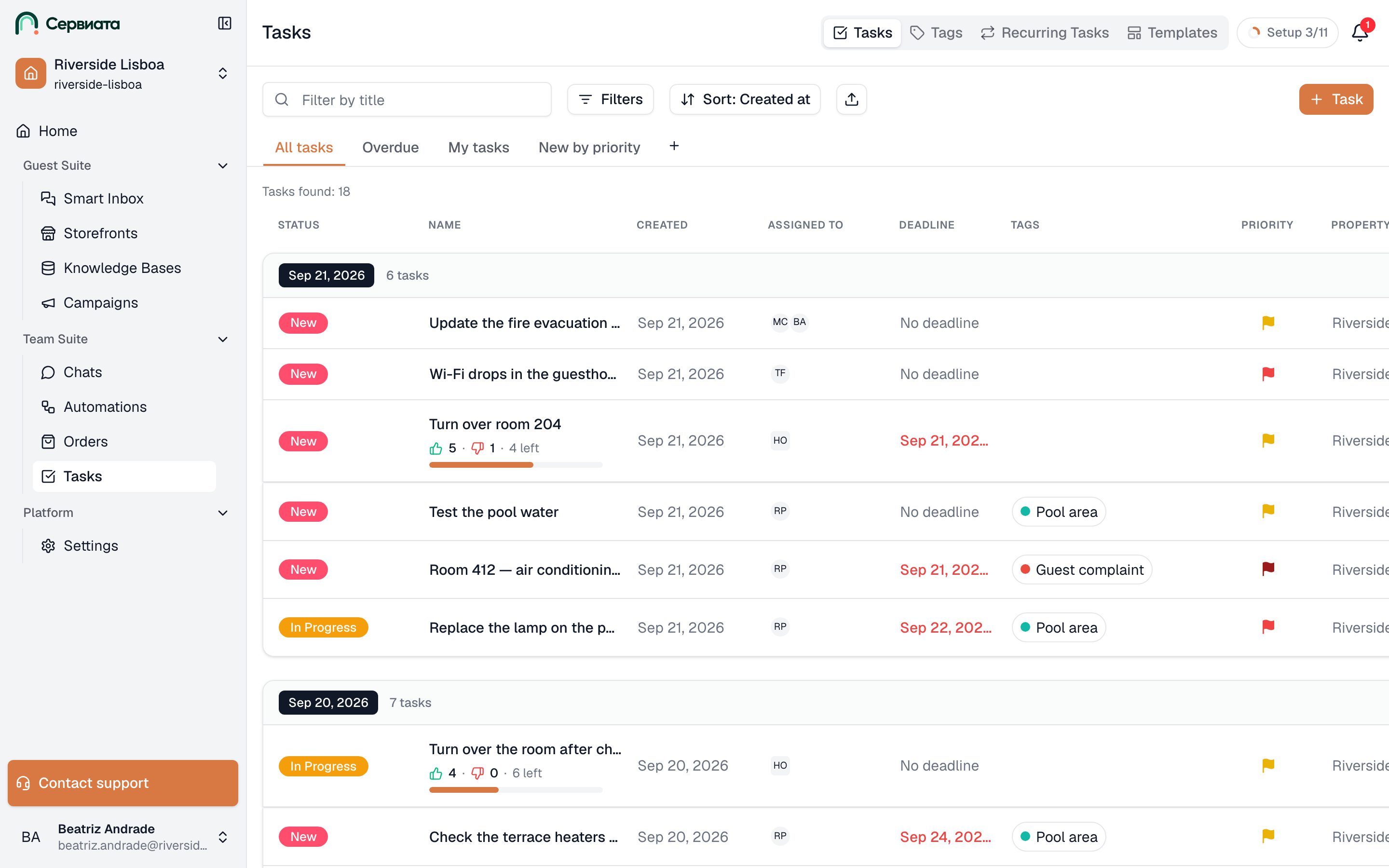
A view is a named tab above the task list that keeps a set of Filters and a Sort order. Click it and the list shows that slice of the work again — your own tasks, everything overdue, what came in today — without setting anything up.
Views sit in a row under the toolbar, on the task list only. They are yours alone: nobody else in the workspace sees them, admins included, and each workspace has its own set. The same views, in the same order, are in the mobile app.
- 1
- 2
- 3
- Your views — click one to show its tasks
- Filters and Sort — what a view keeps
- How many tasks the open view shows
Create a view
+ at the end of the row (Add view) creates a view called New view, opens it and puts its name into edit mode. Type a name and press Enter — clicking anywhere else keeps it too. Esc leaves the name as New view.
A new view starts empty: no filters, sorted by Created at, newest first. Set Filters and Sort the way you want them, and the view keeps them. To start from the filters you already have on screen, use Duplicate on the open view instead of +.
Switch between views
Click a view to open it. Its filters and sorting apply at once, and the Filters count and the Sort button show them. Whatever you typed into Filter by title is not part of any view — it stays as it is when you switch.
The next time you open the task list in this browser, the view you used last opens again. If it has been deleted since, the first view in the row opens.
Changes save themselves
There is no Save button. Whatever you change in Filters or Sort while a view is open is kept in that view straight away — switch away and back, or reload the page, and it is still there. Clear all filters is a change too: it empties the open view's filters, and the search field with them.
So to keep a view as it is, don't experiment in it — duplicate it and experiment in the copy.
If a change can't be saved — the connection dropped, say — Couldn't save view appears and the view goes back to what it had.
Rename, duplicate, reorder, delete
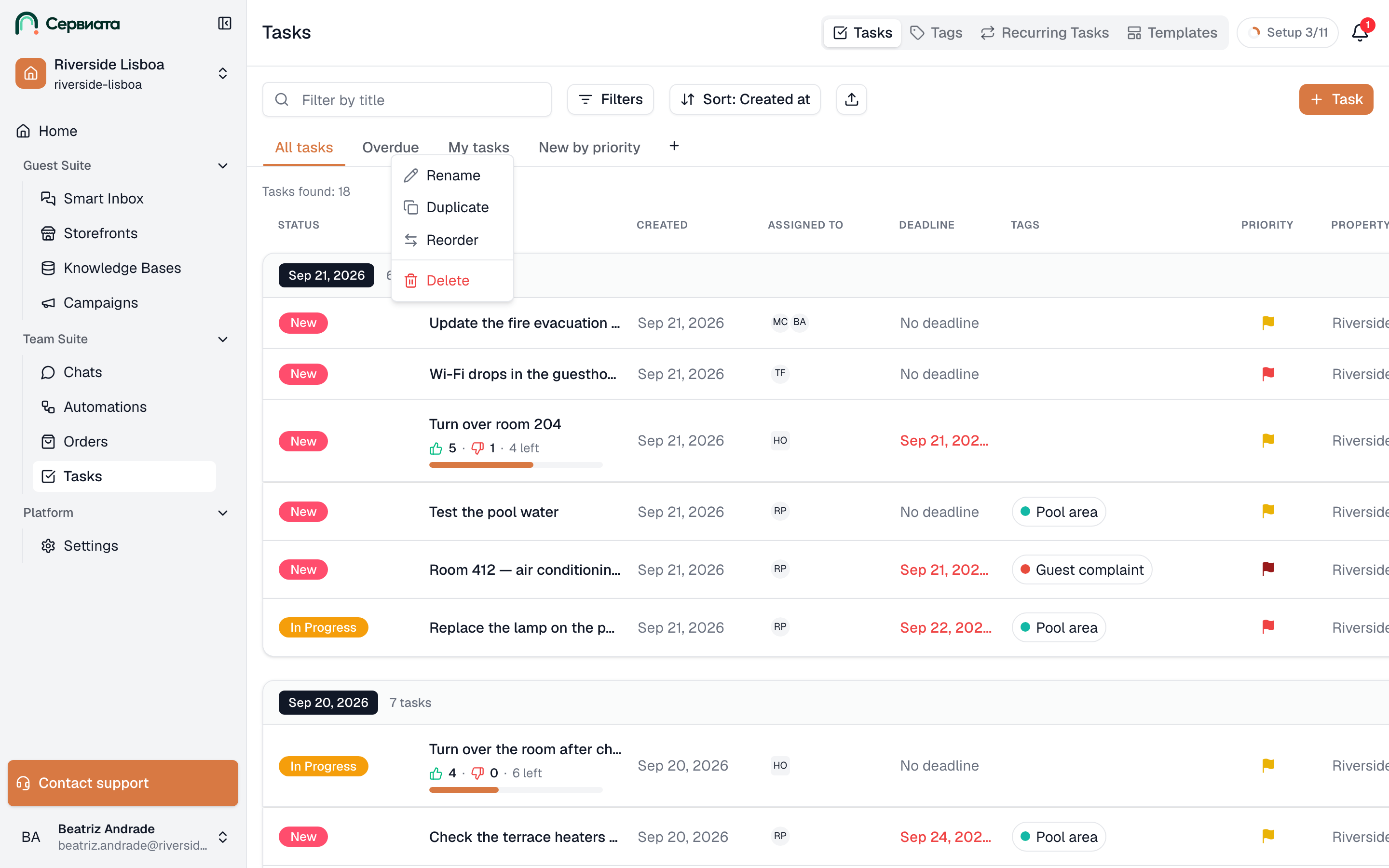
Right-click a view to open its menu. From the keyboard, move to the view and press the menu key or Shift+F10. Right-clicking doesn't open the view, so you can tidy the row without leaving the list you are looking at.
- 1
- 2
- Your views, in the order you arranged them
- Rename, Duplicate, Reorder and Delete for the view you right-clicked
| Action | What it does |
|---|---|
| Rename | Edits the name in place: Enter or a click elsewhere saves it, Esc cancels. Up to 50 characters, and two views may share a name. |
| Duplicate | Adds a copy with the same filters and sorting at the end of the row — named after the original with (copy) added — and opens it. |
| Reorder | Lets you drag views along the row — see below. It's in the menu once you have two views. |
| Delete | Asks first (Delete view), then removes the view. Your tasks are not affected. If the view was open, the one beside it opens instead. |
Changing the order
Reorder turns the row into a drag mode: every view gets a grip, and Done takes the place of +. Drag a view left or right — the row scrolls when you reach its edge — and drop it where you want it. Each drop is saved immediately.
From the keyboard: move to a view, press Space or Enter to pick it up, move it with the left and right arrow keys, and press Space or Enter again to drop it. Esc puts it back where it was.
Done, a click anywhere outside the row, or Esc finishes. While the row is in this mode, clicking a view doesn't open it.
The order is yours, and it is the same in the mobile app. New and duplicated views are added at the end.
Without views
Until you create one, the row holds only +. Filters and sorting still work, but nothing keeps them: reload the page and the list is back to every task, newest first. Deleting your last view brings you back here.
Good to know
- You can have up to 20 views in a workspace. At 20, + and Duplicate are unavailable, and + says why: You can have up to 20 views.
- A view never shows you more than you are allowed to see. If your access changes, the view follows it.
- A view can outlive what it filters by. When a tag, group, location or property it names is deleted — or you lose access to that property — that part of the view is simply ignored.
- Views are only on the task list — not on Tags, Recurring Tasks or Templates.
The three views most teams end up using
Overdue only, sorted by Due date — what is already late. Assignees set to yourself — your own work. Status: New, sorted by Priority — what has come in and nobody has picked up. Make each one a view once and switch between them all shift.
Where to go from here
- The task list — every filter and sort order a view can keep.
- Exporting tasks — download what the open view shows as a spreadsheet.