Task templates
Reusable task blueprints — what a template holds, who manages them, and how a task or a schedule starts from one.
Some work arrives in the same shape every time: the welcome setup for an arriving VIP, the deep clean after a long stay, the monthly walk-round with the fire contractor. A task template is that work written out once — title, assignees, priority, checklist, files — so raising it again is one choice instead of one form.
A template is a starting point and nothing more. It fills a form in for you; from the moment you press save, the task you created is its own thing.
Where templates live
Templates is a tab on the Tasks page, and it holds both kinds of template the module has:
| Sub-tab | What it holds |
|---|---|
| Checklist templates | The lists of small things a task can be given — see Checklists. |
| Task templates | A whole task, ready to start. That's this page. |
What a template holds
A task template carries almost everything a task can carry, and every one of those fields lands in the task you start from it:
| Field | What it's for |
|---|---|
| Property | Which hotel the template belongs to, or Workspace level for one that isn't tied to a building. Required, and filled in for you when you only work one. A new template can take several — see below. |
| Template name | How the template is listed here. Required, and not copied into the task — name it for the job, not for the title. |
| Task title | What the task will be called. Leave it empty and the task takes the template's name instead. |
| Description | The standing detail — where the cupboard is, which form to fill in. |
| Priority | Critical, High, Normal or Low. New templates start at Normal. |
| Assignees | People and whole groups, for work that belongs to a shift rather than a person. |
| Watchers | Who is kept informed — see Assignees and watchers. |
| Locations | Where the work happens — see Locations on tasks. |
| Tags | The labels the task comes out with — see Tags. |
| Checklist | A checklist template, and behind Configure checklist assignees, who each item or section is for. |
| Attachments | Up to ten files — the floor plan, the chemical sheet, the photo of what "finished" looks like. Every task started from the template gets its own copy. |
Property first, here too
The property decides what the rest of the form offers: assignees, groups, tags and locations are all narrowed to it, exactly as they are on a task. Change the property while editing and the locations come off, because they belonged to the old one.
One form, several properties
A new template can be set up for several properties at once, the same way a recurring schedule can: pick more than one in Property (and Workspace level if you want that too), and saving creates one template per pick. They share the name, title, description, priority and checklist, and each keeps only what belongs to its own property — the assignees and watchers who work there, its groups, its tags and its locations. The files you added land on every one of them. From then on they are separate templates: editing one leaves the others alone, and each has its own history and usage count.
Who sees them, who manages them
Templates are scoped by property, the same way tags and recurring schedules are. You see the templates of the properties you have access to, and workspace-level ones when your access covers the whole workspace.
Anyone who can see tasks can see templates and start work from them. Creating, editing and deleting a template needs the Manages task templates permission, per property: someone who holds it in Lisbon manages Lisbon's templates and starts tasks from anyone else's. Rows you can't manage simply come without the edit and delete buttons.
Finding one
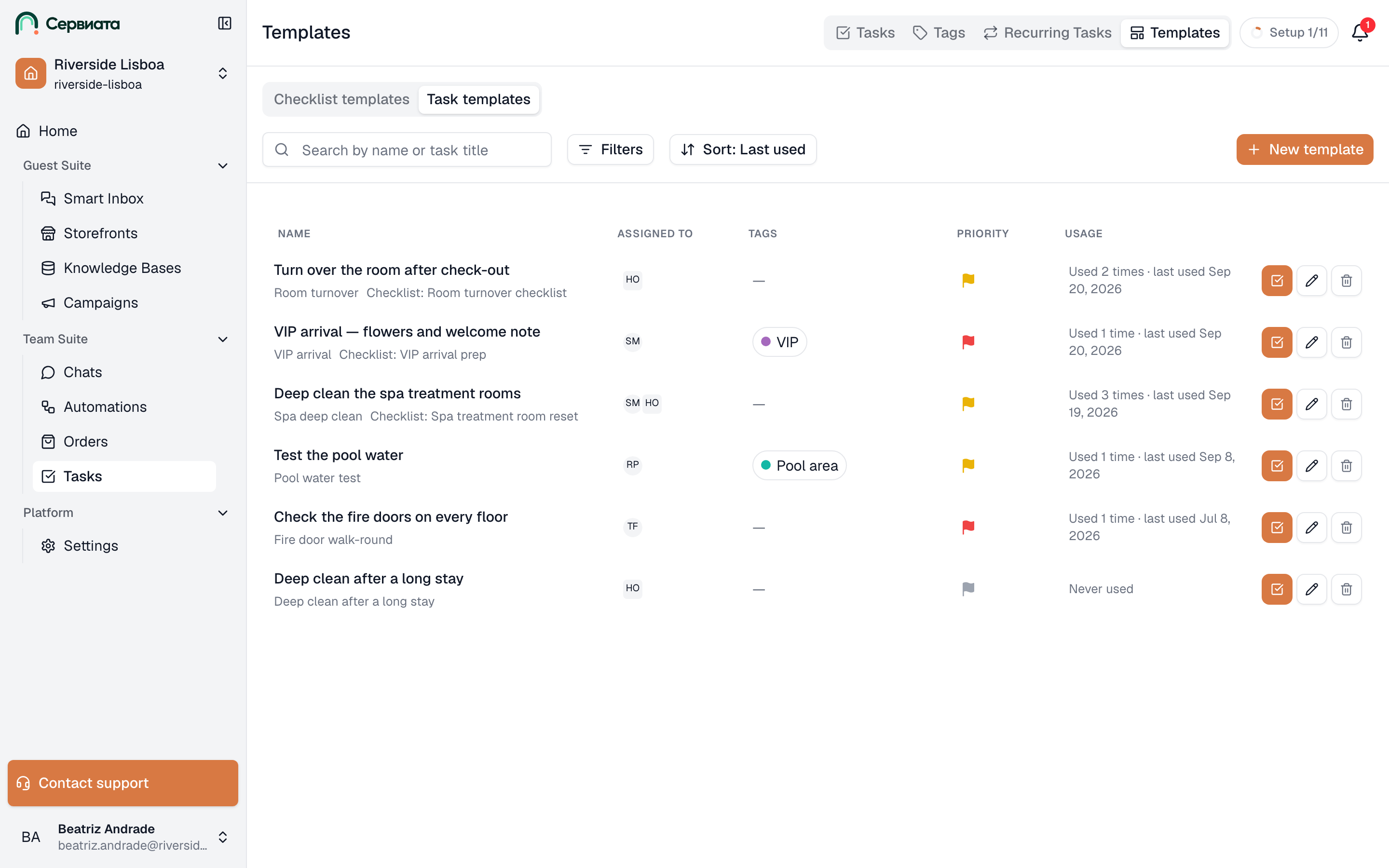
Above the list: the sub-tabs, and under them three tools that combine, with New template on the right.
- 1
- 2
- 3
- Checklist templates and Task templates — the two halves of the Templates tab
- Search by name or task title, filters, sorting, and New template
- One row per template: the task title, the template name, assignees, tags, priority and how often it is used
Search — the field marked Search by name or task title, so a template found by either name is one you can actually find again.
Filters — the button carries a count of how many are on:
| Filter | Narrows to |
|---|---|
| Property | One or more properties, and workspace-level templates. |
| Assignees | Templates that assign particular people or groups. |
| Created By | Templates made by particular people. |
| Tags | Templates carrying certain tags. |
| Removed group | Only templates assigned to a deleted group. |
Removed group is the housekeeping switch. When a user group is deleted, the templates that assigned it keep pointing at it and show Removed group in place of a name — this filter collects them so you can give the work to a group that still exists.
Sort — the Sort: Last used button picks the field (Last used, Name or Last edited) and the direction. The list opens on Last used, newest first, which puts the templates your team actually reaches for at the top.
Reading a row
A row reads like a task, deliberately: the title the task will get, with the template's name under it (and Checklist: Arrival prep when it has one), the assignees, up to two tags, the priority flag, and how much use it gets — Used 12 times · last used 3 March 2026, or Never used. A template nobody has used in a year is either wrong or forgotten.
Three buttons end the row: Use template (checkbox) starts a task from it without opening anything else, then Edit template (pencil) and Delete template (bin).
Opening a template
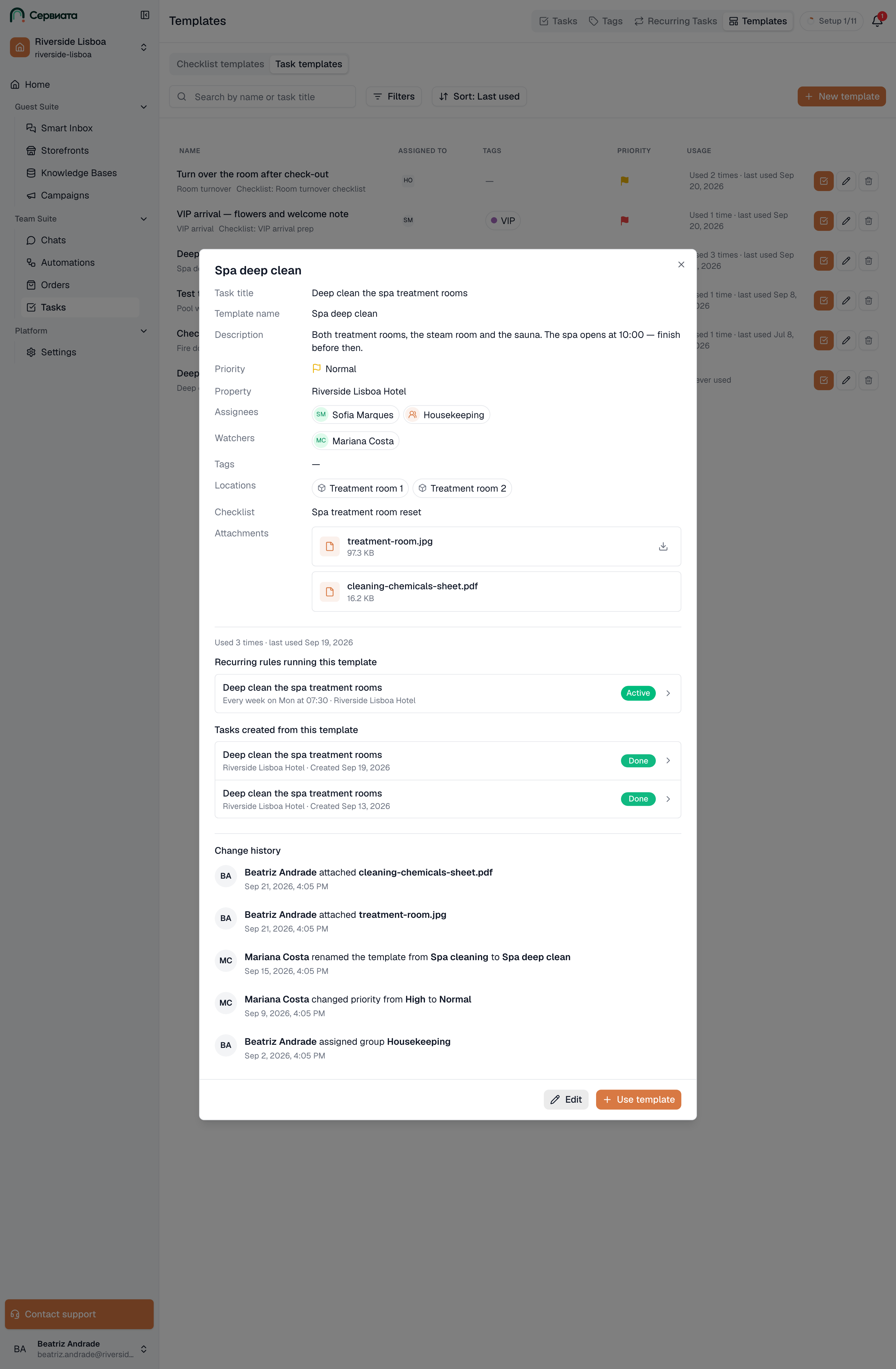
Clicking the row opens the template: every field as it stands, then three things worth knowing before you change it.
- Recurring rules running this template — the schedules that were started from it. Click one to open it.
- Tasks created from this template — the tasks people raised from it, newest first. Click one to open it.
- Change history — who changed what, newest first: renames, a new priority, a group added, a file attached. The line above these lists is the usage line, so "how much is this used and by what" is answered in one screen.
A template nobody has started anything from says This template hasn't been used yet instead.
At the bottom sit Edit and Use template.
- 1
- 2
- 3
- The open template: every field it fills in, with Edit and Use template at the bottom
- How often it is used, the recurring rules running it and the tasks created from it
- Change history — who changed what, newest first
Creating and editing one
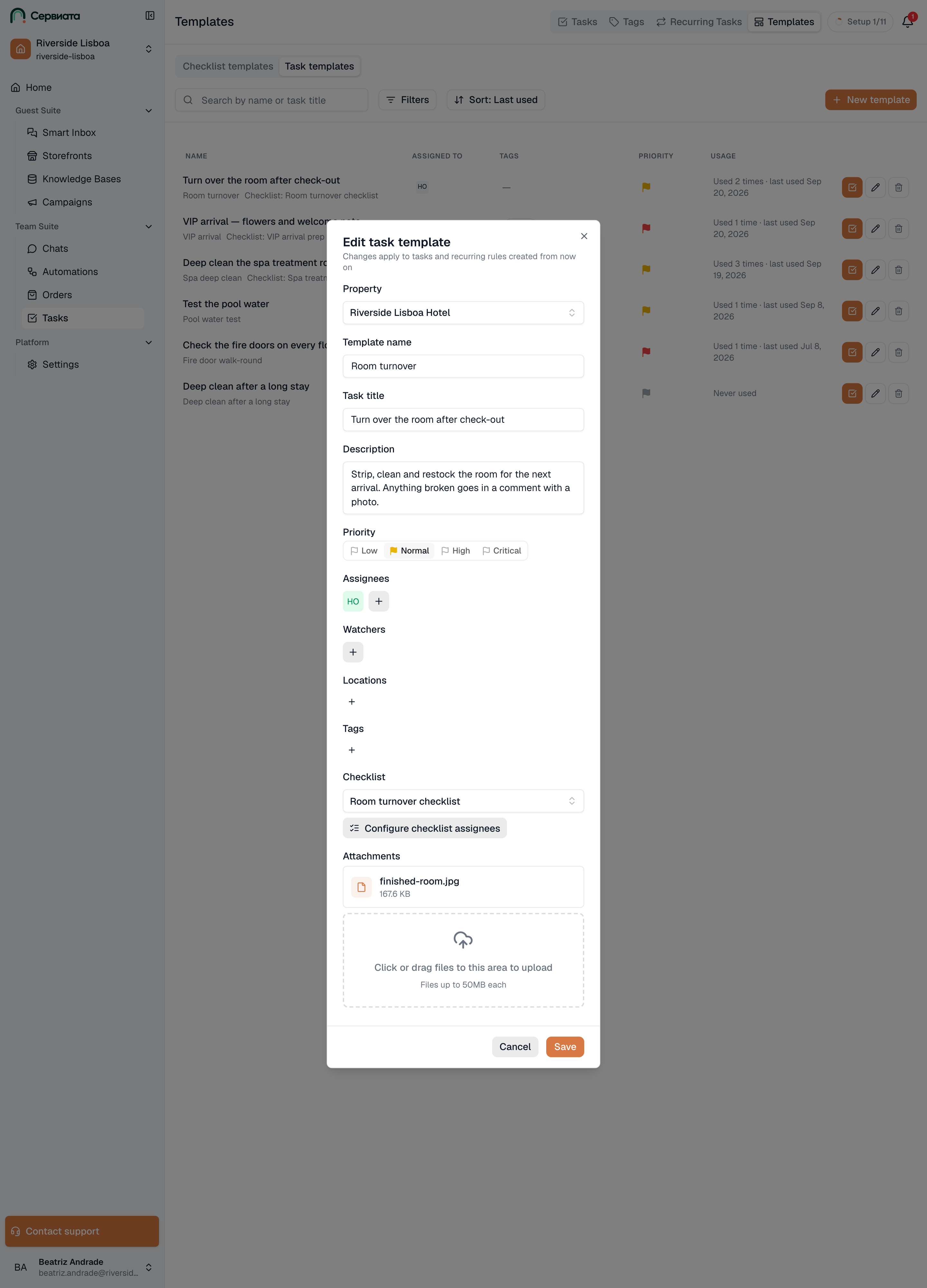
New template opens the same form you'll later edit. Fill in the template name, then as much of the task as is genuinely always true — a template that has to be half-rewritten every time saves nobody anything.
- 1
- The template form: its name, the task it fills in, the checklist and who each part of it is for
Two differences worth knowing between creating and editing:
- While creating, files are attached along with the rest of the form when you save it.
- While editing, files are saved the moment you add or remove one, like files on a task. The rest of the form still waits for Save.
Starting work from a template
There are three doors, and they all do the same thing — fill a form in:
- Use template on a row, or in the open template. The create-task form opens already filled in.
- Start from a template, the first control of the create-task form. Pick one and the rest of the form fills itself in around what you've already typed.
- The first control of the form for a new recurring schedule, so a schedule that runs the same job every week is set up once from the same blueprint.
Clear template beside the picker puts the form back to empty, so picking the wrong one costs nothing. Files you added yourself stay; the template's files go.
What a template doesn't do
This is the part to read twice, because it's what makes templates safe to edit:
- Editing a template changes nothing that already exists. Tasks raised from it yesterday and schedules built on it last month keep exactly what they were given. A template is copied at the moment you use it, not consulted afterwards.
- Change the title while creating and the link is dropped. A note appears under the field — Title changed — this task won't be linked to the template — and the task is created as an ordinary one. Everything else the template filled in stays. The same rule applies to a new recurring schedule.
- Tasks that a schedule produces on its own aren't linked to the template. The schedule is; each task it creates on its day is an ordinary task, and isn't counted in the template's usage.
- A group that has since been deleted is quietly left out. The template still shows Removed group, but the task or the schedule you start from it isn't given a group that no longer exists.
Deleting one
Delete on a row asks first, and the dialog says what is affected across all properties — "2 recurring rules run it · 34 tasks were created from it" — or Nothing uses this template when nothing does.
Either way, nothing else is deleted with it. Schedules built from the template keep running, tasks raised from it keep their title, assignees, checklist and files. You lose the blueprint, not the work. If a template is merely out of season, consider editing it rather than deleting — deleting means typing it all again in the spring.
Where to go next
- Checklists — the other half of the Templates tab.
- Recurring tasks — schedules, which can be built from a template.
- Your first task — where Start from a template sits in the create form.