Your first task
Create a task, give it an owner and a deadline, and follow it through to Done.
Ten minutes, one real job of work. Pick something your team actually has to do today — the point is to see a task travel from "somebody should" to Done.
1. Open Tasks and press Task
Tasks in the sidebar, then the Task button in the top right of the list.
- 1
- 2
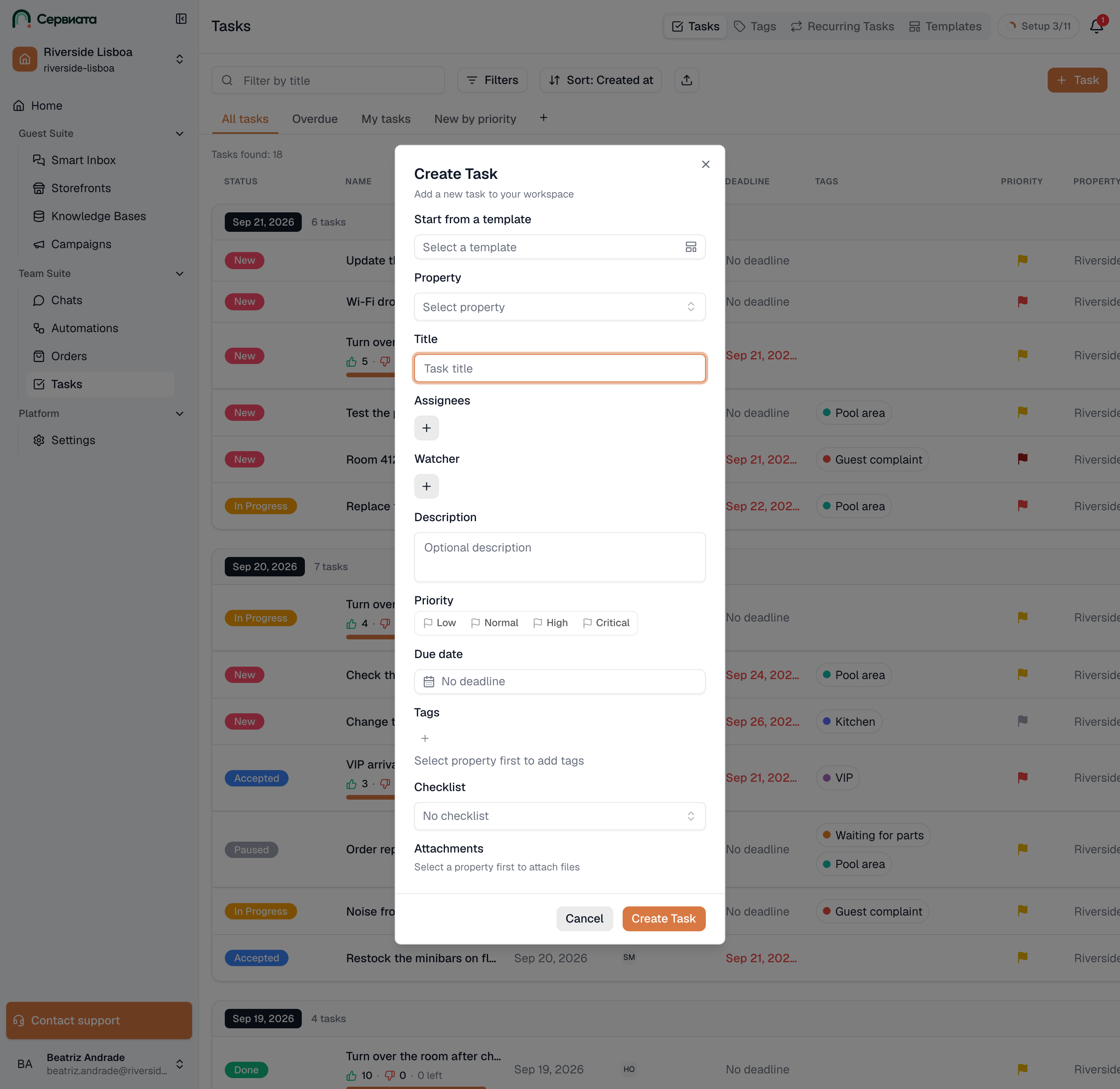
- Everything a new task can carry — only two fields are required
- Start from a template — pick one and the form fills itself in
2. Start from a template, or don't
The first control in the form is Start from a template. Pick one and everything the template carries — title, assignees, priority, tags, checklist, files — is filled in for you, and all you do is change what's different about today's job. Clear template beside it empties the form again.
Until you pick one it shows Select a template — leave it empty the first time through. Come back to task templates once you notice your team typing the same task twice a week.
3. Fill in the two fields that are required
Only Property and Title have to be filled in, plus at least one assignee:
- Property — which hotel this belongs to, or Workspace for work that isn't tied to one. Choose it first: the assignee, watcher and tag lists all fill themselves in from it.
- Title — what has to be done, in the words you'd say out loud. "Replace the lamp on the pool terrace" beats "lamp".
- Assignees — who does it. Pick people, or a whole group under Groups when it's a job for whoever is on shift rather than a named person.
Everything else is optional, and all of it can be added later:
| Field | Use it for |
|---|---|
| Watcher | Somebody who needs to know how it goes but isn't doing it. |
| Description | The detail that doesn't fit the title — a room number, what the guest said. |
| Priority | Critical, High, Normal, Low. |
| Due date | When it must be finished. |
| Tags | Labels you filter by later — see Tags. |
| Checklist | A checklist template the person doing the work fills in. |
Create Task saves it. A confirmation appears in the bottom-right corner with the task's number and title, and View task in it opens the task — you stay where you were until you click it. The new task sits at the top of the list under Recently Added.
4. Watch it in the list
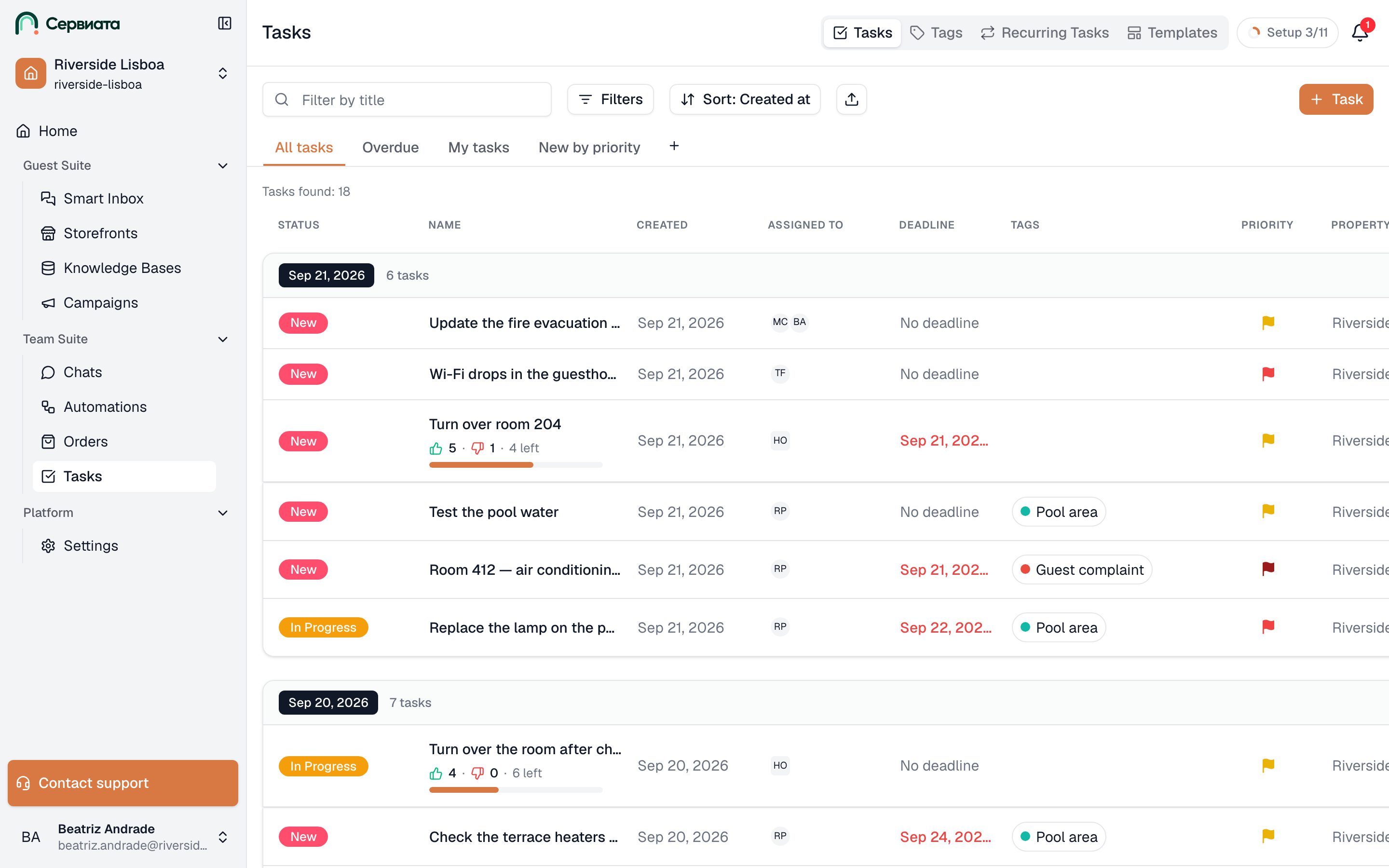
Your new task is now a row anybody with access to that property can see. The row carries its status, title, who it's assigned to, the deadline and its tags — enough to run a shift handover from the screen without opening anything.
- 1
- 2
- Search, filters, sorting — and the button you just used
- One row per task, grouped by whatever you sort on
5. Move it along
The status dropdown is on the row itself, so the person doing the work never has to open the task:
New → Accepted ("I've got it") → In Progress → Done. Paused is for work that has stalled on something outside the team, and Cancelled for work that isn't happening after all.
Clicking anywhere else on the row opens the task beside the list, where the description, the checklist, the files and the comments live.
6. Say what happened
Before closing a task, write what was done in the comment box at the bottom of the panel. A week later "Done" tells nobody anything; "Replaced, spare lamp taken from store, one left" tells the next shift what they need.
Where to go from here
- The task card — every field, and who's allowed to change it.
- Checklists — when "clean the room" is really fourteen small things.
- Recurring tasks — so today's routine job doesn't have to be created again tomorrow.