Channels on your phone
Channel info, members, mute and archive on a phone, plus creating a channel and keeping a conversation at the top of your list.
Everything a channel is — who can see it, what public and private mean, who may create one — is explained once in Chats and is true on both screens. This page is where those things live on a phone.
Channel info
Tap the channel's name at the top of a conversation.
- 1
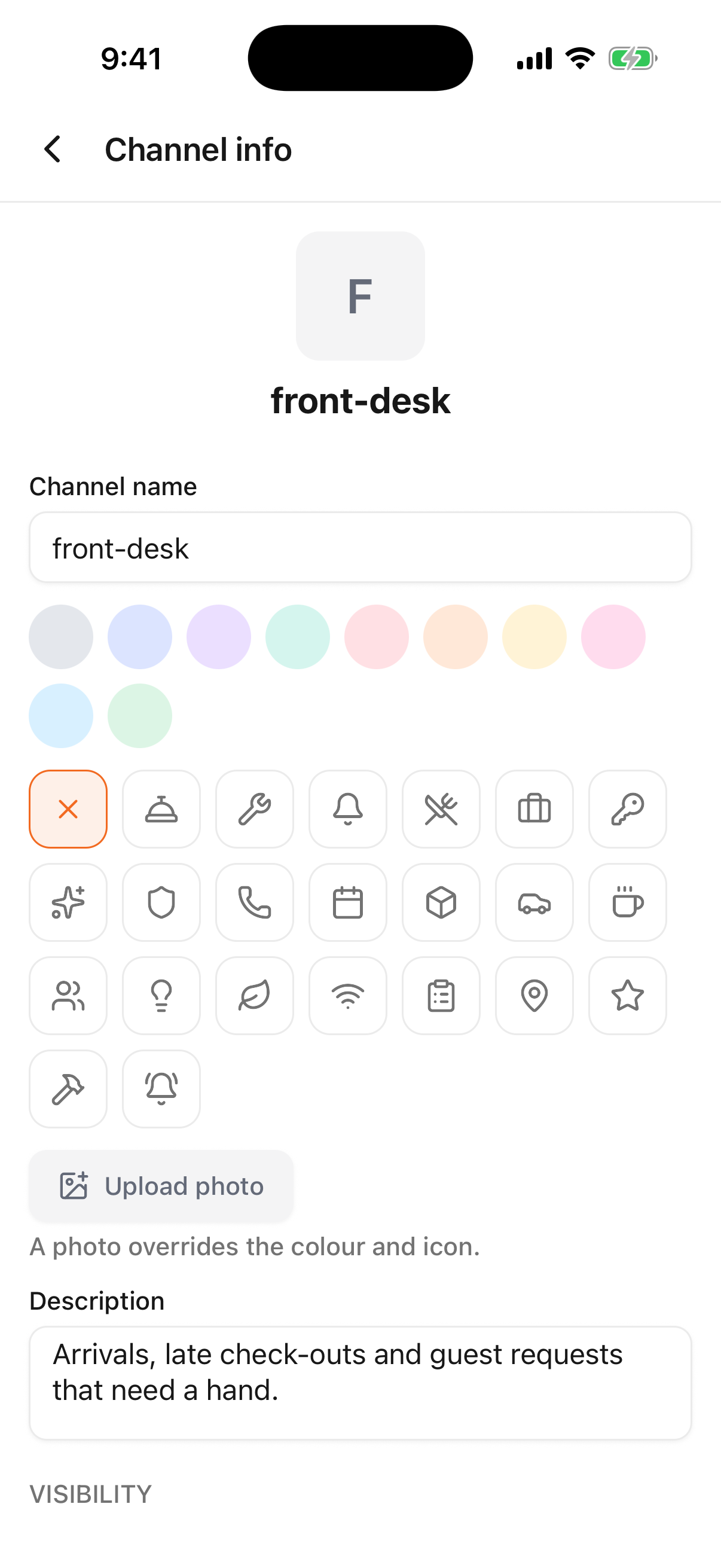
- The channel — its name, picture, description, visibility and everything below
Scrolling down that screen: the picture, the name and description, Visibility (public or private), Read-only, Mute notifications, the Members list with an Admin badge beside those who manage the channel, then Archive channel, Leave channel and Delete channel.
What you can actually change depends on your rights. A channel's admins — and workspace owners and admins — edit the name, picture, description, visibility and members. Everyone else reads the same screen, mutes it if they like, and leaves it if they want to.
Making a channel public is not reversible
The confirmation says what will happen: everyone in the workspace will be able to find the channel and read its full history. On a phone that is one tap away, so read it before you agree.
Creating a channel
The round + in the corner of any screen offers New channel — for people whose permissions allow it — and New direct message, which is open to everyone.
- 1
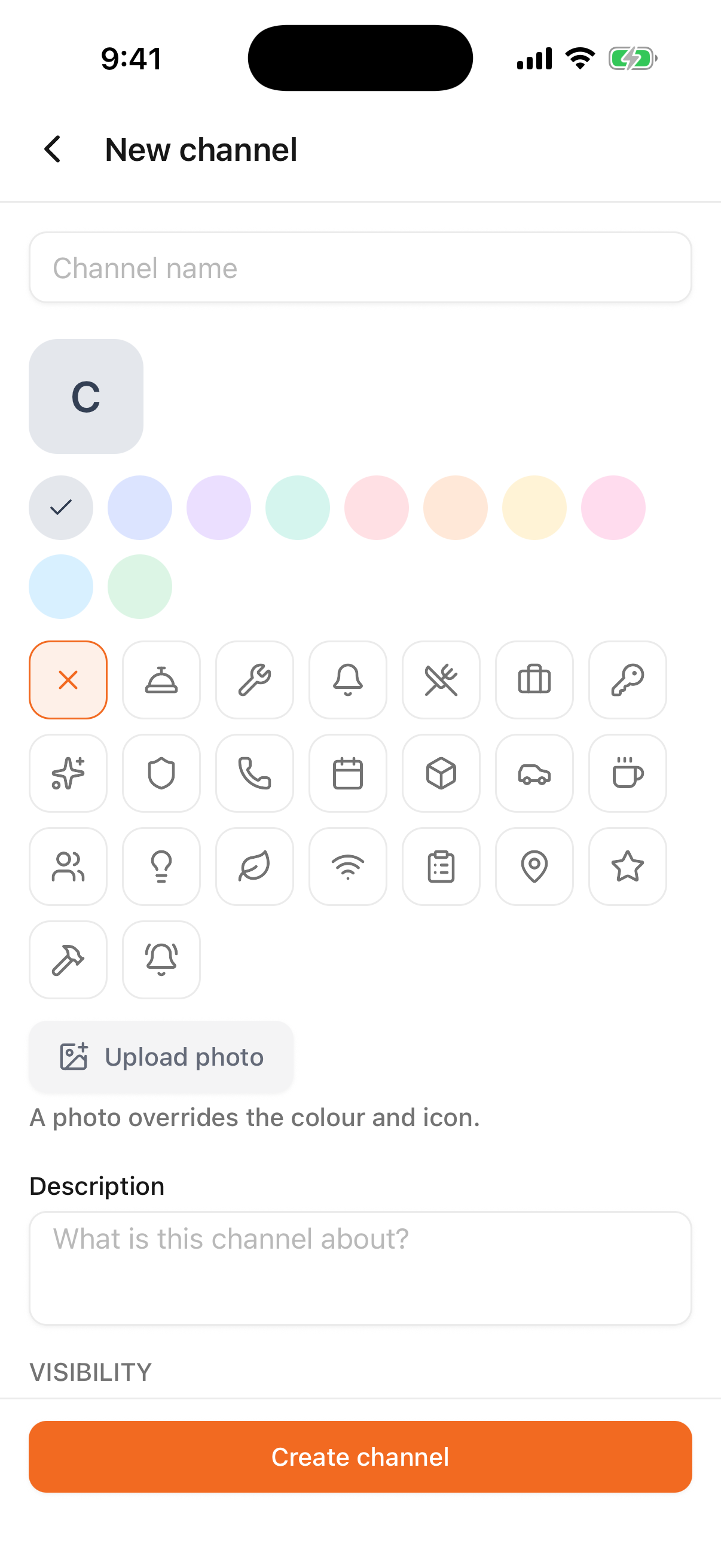
- Name, picture, description, then visibility and who starts in it
The form asks for the same things as the browser: a name, a picture (a colour, an icon, or a photograph, which overrides both), a description, the scope, visibility, and the people who start in it. Choose the scope and the visibility deliberately — those two decide who can ever reach the channel, and the picture and name can be changed at any time afterwards.
Keeping a conversation to hand
Press and hold a row in the Chats list. The sheet offers Favourite, Pin and Mute — the same three personal settings as the browser, and just as invisible to everyone else.
- Favourite puts it behind the Favourites chip.
- Pin keeps it at the top of the list.
- Mute silences it — no phone notification from that conversation, while its unread badge keeps counting.
Which conversations announce themselves, and what a mention does that an ordinary message doesn't, is in Notifications.