Tasks on your phone
The tasks tab — what a card tells you at a glance, how to open and change work, and how to create it.
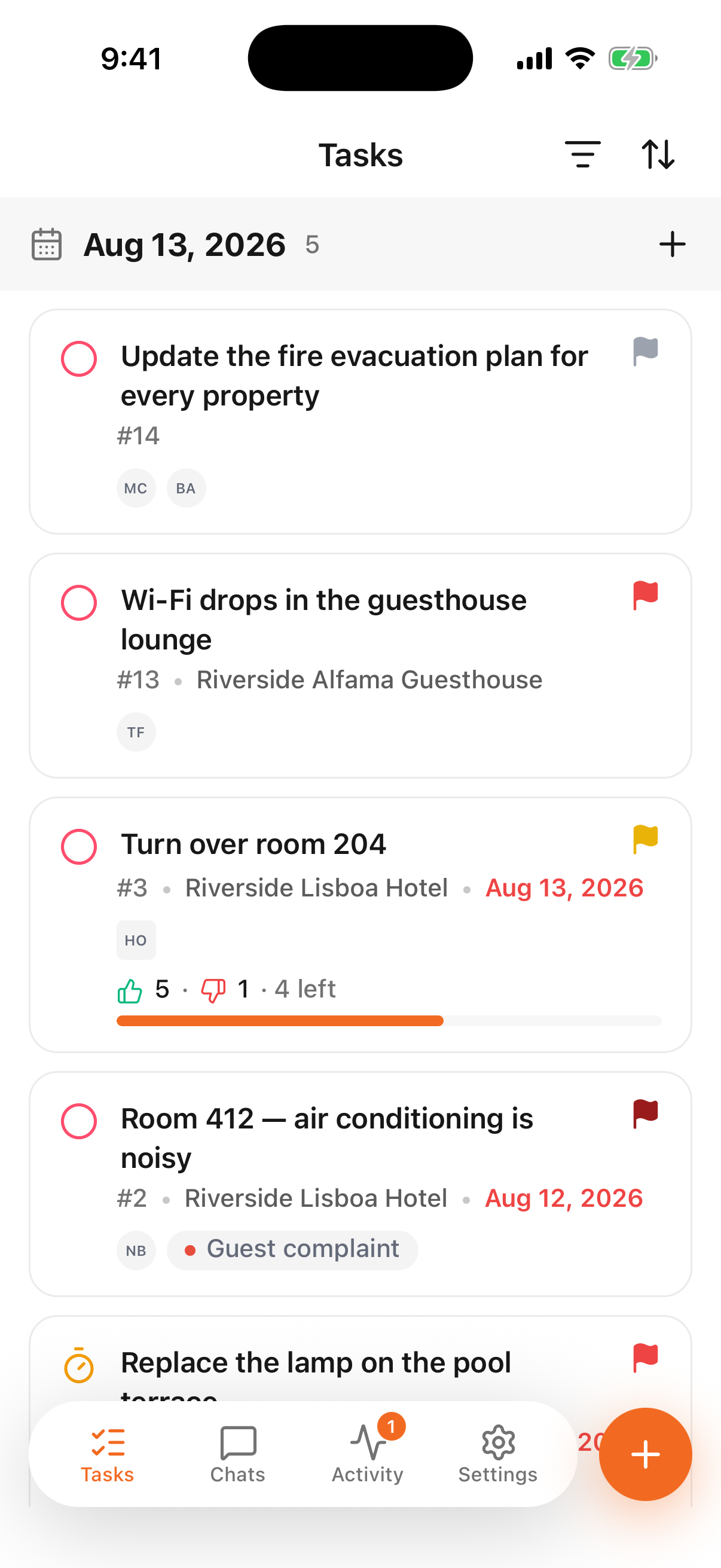
The Tasks tab opens on the same list your team sees on the web, arranged for one hand and a short glance.
- 1
- 2
- Filter and sort, always in reach
- One task — everything you need before deciding to open it
Reading a card without opening it
A card carries what you need to decide whether this is the job you're doing next:
- The circle on the left is the status — new, in progress, paused, done.
- The title, and a flag on the right when the task has a priority.
#and a number — how people refer to that task out loud and in chat.- The property, when the work belongs to one.
- The due date, which turns red once it has passed.
- Who it's on — the round avatars are people, the square ones are teams.
- A checklist bar, when there's a checklist: how much of it is done.
Tap the card to open the task itself, where you can change any of that.
Inside a task
- 1
- The checklist, and the way into it
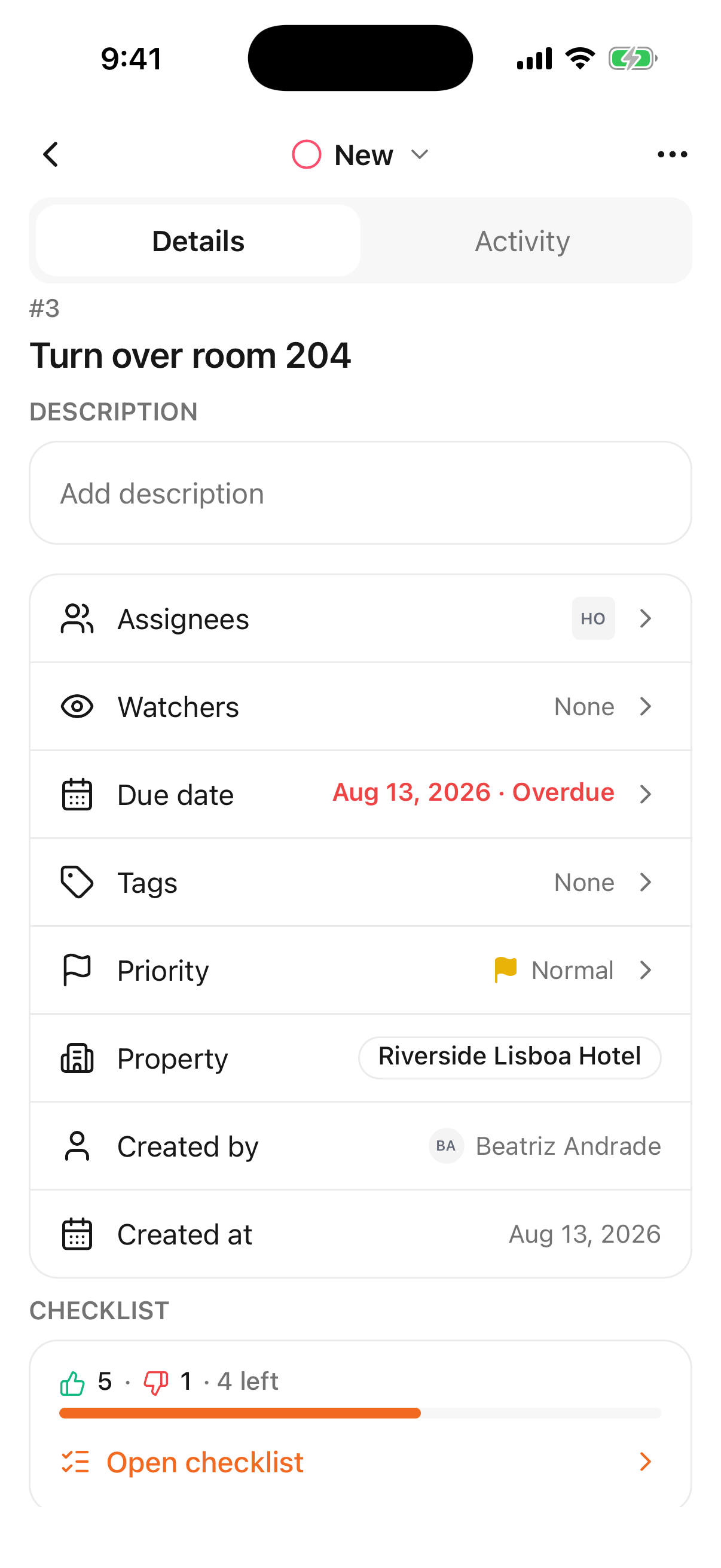
The status sits in the header and changes from there. Below it, one row per field — assignees, watchers, due date, tags, priority, property — each opening a sheet when you tap it. A row you aren't allowed to change is shown greyed out rather than hidden, so everyone reads the same task.
Details and Activity at the top switch between the task and its history: who changed what, and every comment.
When the task has a checklist, its progress sits at the bottom — how many items are done, how many are marked as a problem, how many are left — and Open checklist goes to the items themselves. That screen is where most of a shift actually happens: tick an item off, or flag it as a problem when the room isn't ready and someone has to know.
Grouping, filtering, sorting
The list is grouped by whatever it's sorted by — by date you see a heading per day with a count of the tasks in it; by status or priority, one heading per status or priority.
The two icons in the header are filter and sort. The filter icon changes colour while a filter is on, so a list that looks unusually short is never a mystery — one glance at the header explains it.
Pull the list down to refresh it.
Creating a task
Two ways, and they do the same thing:
- the + on a group heading — starts a task in that group,
- the round + in the corner — the same sheet you use for a message or a channel.
If you don't see a way to create one
Creating tasks is a permission, like everything else. If the option isn't offered, your account doesn't have it for this property — ask whoever administers your workspace. See team and permissions.
What this page doesn't repeat
Statuses, priorities, checklist templates and recurring work mean the same thing everywhere and are explained once, for the whole product:
- The task card — everything inside a task
- Checklists — templates and how they're filled in
- Recurring tasks — work that comes back on a schedule