Checklists on a task
Giving a task a checklist, and how the person doing the work marks it off with photos and notes.
A template only becomes useful when it's on a task. From then on it belongs to that task alone — what gets ticked, photographed and written is the record of that particular job.
Giving a task a checklist
Two moments:
- When you create the task — the Checklist field in the create form, which lists your templates. Leave it at No checklist if the work doesn't need one.
- Afterwards — on the task card, the Checklist field offers Select a checklist template and an Add checklist button.
One checklist per task. If a task already has one, the card shows its progress instead of the picker.
Progress is visible without opening anything: the task's row in the list carries the checklist summary under its title, so a supervisor scrolling the list can see that room 204 is half done.
Working through it
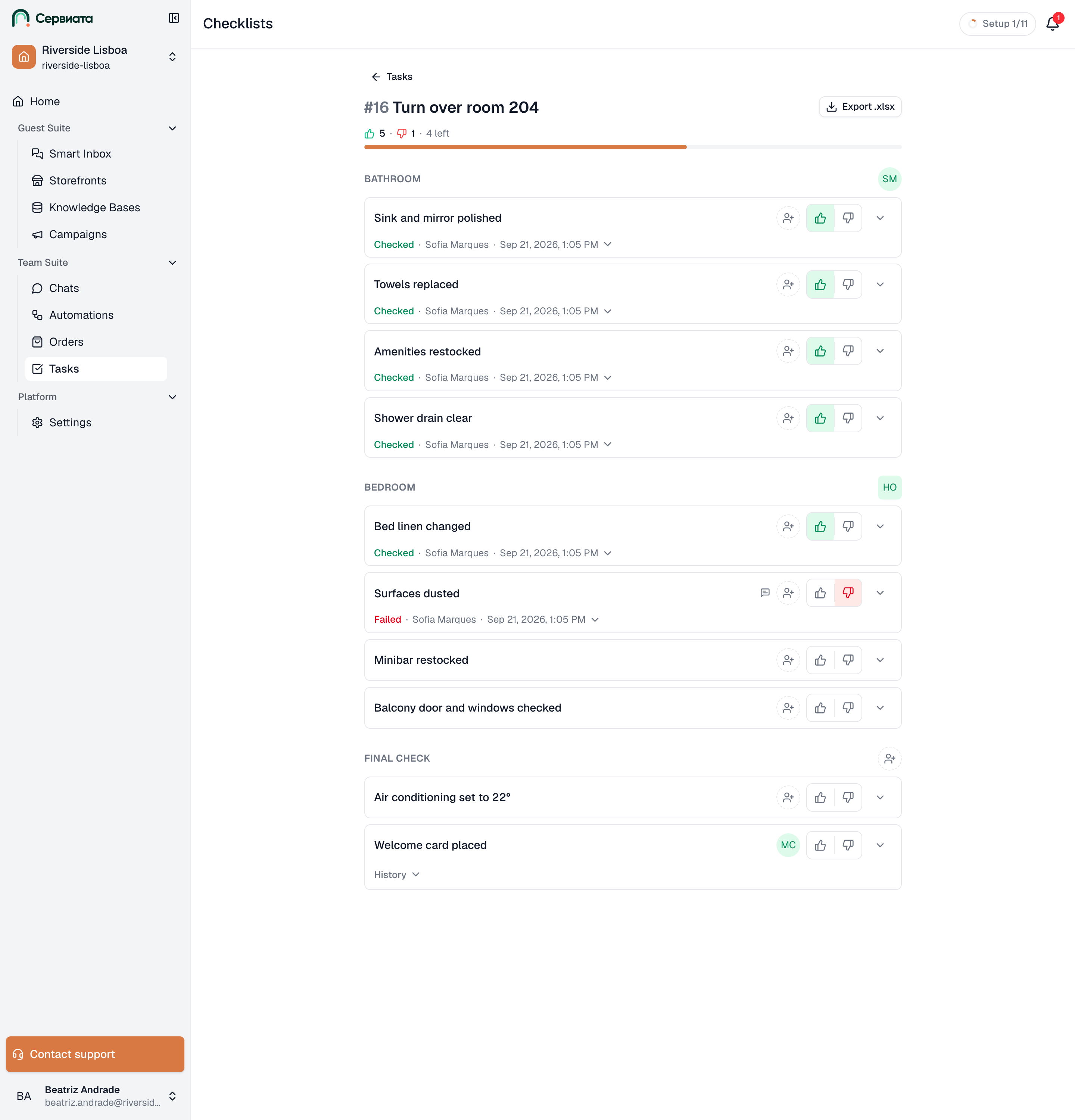
Open checklist on the card opens the task's checklist on its own screen — the one a housekeeper actually uses, with the task number and title at the top and Tasks to get back.
- 1
- 2
- Progress across the whole checklist
- Items grouped by category, each with its two marks
Items are grouped under their categories, and each one has two buttons — thumbs up for Mark as done, thumbs down for Mark as not done. Pressing the mark that's already set clears it, so an item can go back to undecided.
Two marks rather than a single tick is the point of the module: "the minibar is stocked" and "the minibar is empty and I couldn't restock it" are different answers, and a list that can only say "done" loses the second one.
Photos and notes
The chevron on the right of an item opens the space beneath it, where the evidence goes:
- Add photo — take or choose one or more pictures. This is what turns "the bathroom is clean" into something a manager can check without walking upstairs.
- A note — free text, saved as soon as you click away.
An item that carries either shows a small marker in its row — a camera with a count, a speech bubble — so a completed list tells you at a glance where the evidence is.
Ask for photos where the answer is contested
Photographs are worth requiring for exactly the items that generate disagreement later: damage found on arrival, a repair signed off, a fridge restocked. Making every item photographic slows a round down and produces pictures nobody looks at.
Who can mark it off
Marking items, adding photos and writing notes is part of doing the work, so it's open to anyone whose access lets them work the task — not just admins. Someone who can only read the task sees the finished marks, the photos and the notes, but has no buttons to change them.
If a task has no checklist, the screen says so: "This task has no checklist."