Comments, mentions and files
The conversation that happens on a task — attachments, comments with @mentions, and the history of what changed.
Beyond its own fields, a task keeps a complete record of everything that happened on it — the documents attached to it, the messages participants exchanged, and every change that was made. A closed task therefore keeps its value long afterwards, and is still worth reading a month later.
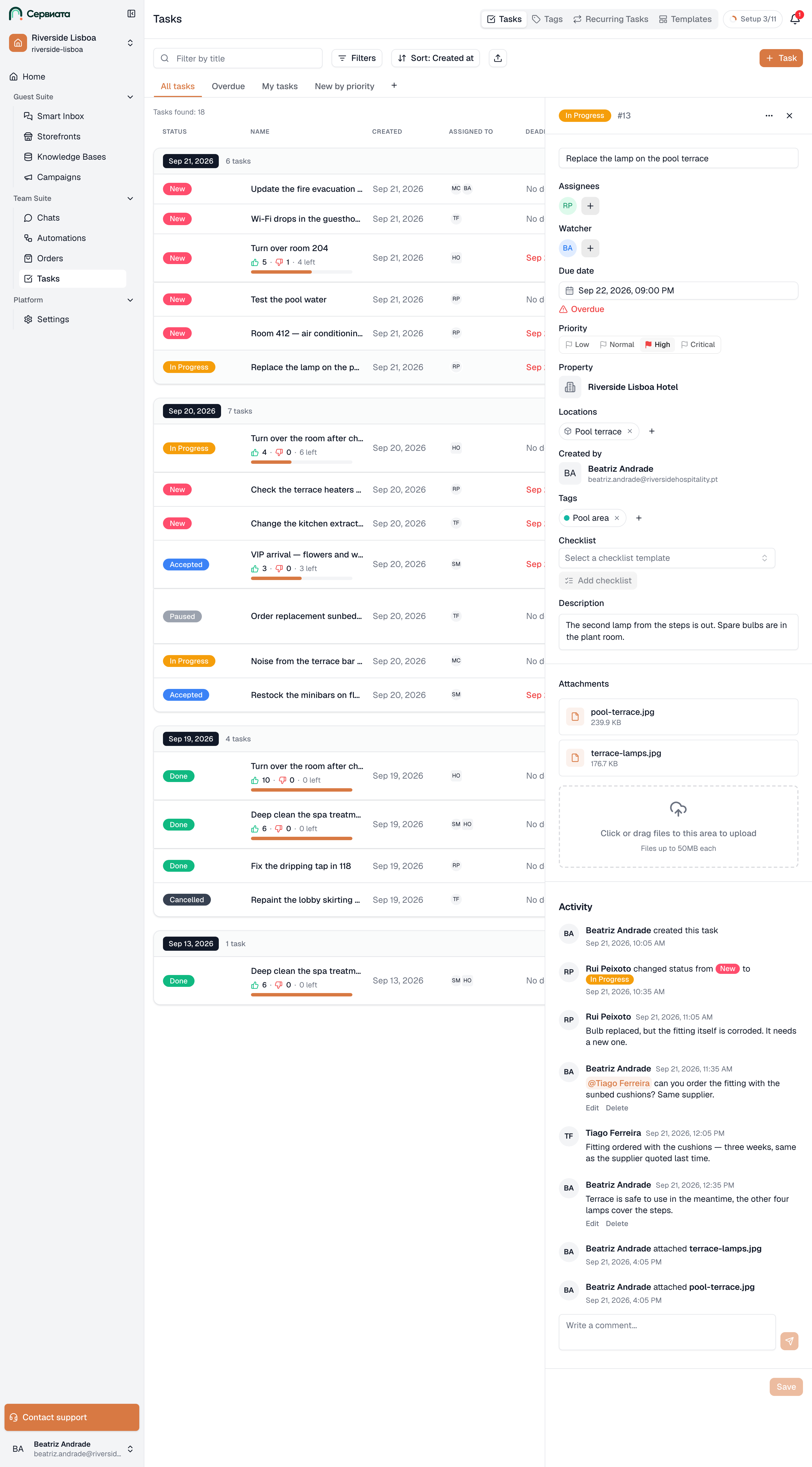
- 1
- 2
- 3
- Files on the task — drag them in or click to choose
- The history, newest first, with comments in among it
- Write a comment; type @ to mention somebody
Attachments
Attachments is for uploading the files a task needs in order to be carried out — photographs, documents and scans: a picture of the defect, the guest's letter, the delivery note.
Files are added by dragging them onto the area or by clicking it. Uploading several at once is supported. The maximum size of a single file is 50 MB, and that limit is stated in the interface. A progress indicator is shown while a file transfers, which makes the upload possible to follow even on an unstable connection.
Every uploaded file can be downloaded. Deletion is available only to users whose access covers changing the task. Every attachment and removal is recorded in the change history, which provides full traceability and removes any uncertainty when a file is no longer there.
Comments
Purpose. The comment box at the bottom of the task card is for exchanging information as the work proceeds: recording what was done, what the guest reported, why something is delayed, and other working notes.
Entering a comment.
- A comment is sent with Ctrl+Enter (⌘+Enter on a Mac) or with the send button.
- Typing @ brings up the list of users who have access to the task; typing further narrows the list, the arrow keys select, and Enter confirms.
- The author may edit or delete their own comments; an edited comment is marked (edited), which removes any need to compare it against earlier versions.
Every comment is visible to all participants of the task — assignees and watchers — in their activity feed. When a mention (@name) is used, the person named receives a separate notification, including a push notification in the mobile app, even if they are not assigned to the task. A mention should be used solely to draw a specific colleague in, and not as extra emphasis, since the comment itself already reaches every participant.
Only people who have access to the task may be mentioned. This prevents a mention from becoming a way to hand work to somebody who cannot open the task.
The history
The task history is a chronological record of every change, sorted by date in descending order — newest events first. Participants' comments are integrated into the same stream, which keeps the sequence of events together and removes the need to consult several sections.
Recorded events. The following actions are entered in the history automatically:
| Action | Shown as |
|---|---|
| Task created | "created this task" |
| Status changed | "changed status from New to In Progress" |
| Due date changed | "changed due date from … to …" |
| Assignees and groups added or removed | "assigned …", "removed …" |
| Watchers added or removed | "added … as a watcher" |
| Attachments added or removed | "attached …", "removed …" |
Entries load as you scroll. History entries cannot be edited or deleted, which guarantees that the chronology is immutable and makes it a reliable source when a dispute arises — for example, over the moment when work was handed on.