The task card
Everything a task holds — its fields, its number, its status, and which of them you can change.
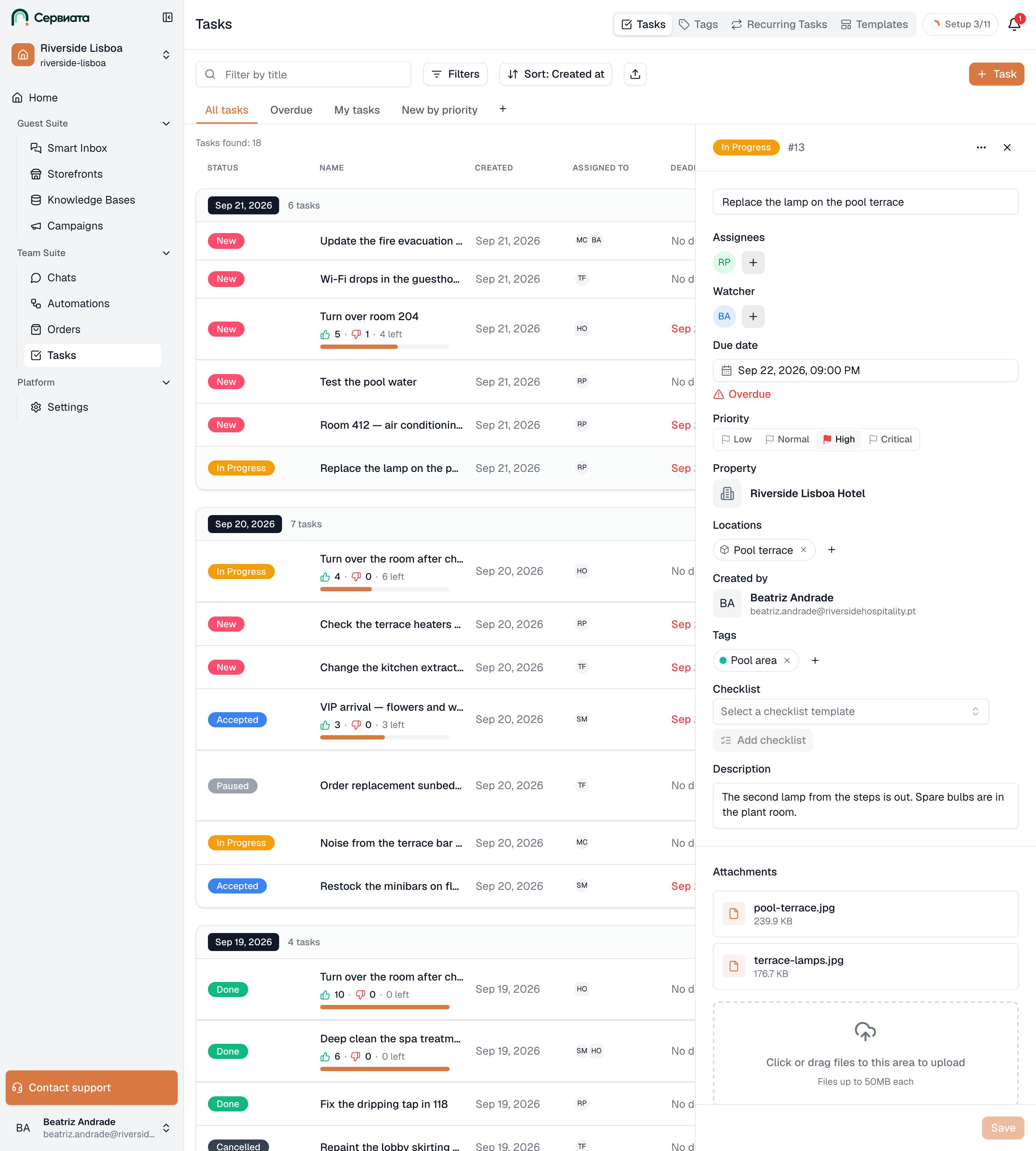
Clicking a row opens the task beside the list. This is where the work is actually described — and where it is handed over, argued about and closed.
- 1
- 2
- Status, the task number, and the menu that deletes it
- Everything the task holds; greyed-out fields are ones your access does not cover
The header
Three things sit above everything else:
- The status dropdown. Changing it saves immediately — no separate save, because a status change is the most common thing anyone does here.
- The number, the short
#beside the status. This is what people say on the radio and write in a message. It never changes. - The menu, holding Delete. It appears only for people whose access includes deleting, and it asks for confirmation naming the task.
While the task is open, the address of the page holds it, so the link in your browser can be copied and sent to a colleague — they land on this exact task.
The fields
| Field | What it's for |
|---|---|
| Title | What has to be done. |
| Assignees | Who does it — people or groups. |
| Watcher | Who follows it without doing it. |
| Due date | When it must be finished. |
| Priority | Critical, High, Normal, Low — press to change, press again to clear. |
| Property | Which hotel it belongs to. Set when the task is created and fixed after that. |
| Locations | Where in that hotel — rooms, floors or areas. See Locations on tasks. |
| Created by | Who raised it. Useful when you need to ask what was meant. |
| Tags | Labels, from the tags that exist for this property — see Tags. |
| Checklist | The checklist this task carries, or the box to give it one. |
| Description | The detail: room numbers, what the guest said, what has been tried. |
Editing any of them enables Save at the bottom of the panel; the button stays inactive until something actually changes, so you can read a task without any risk of altering it.
Setting a deadline
Due date opens a calendar with four shortcuts above it — Today, Tomorrow, This Friday, Next week — and a Set time switch below.
With the switch off, the deadline is the end of the chosen day: a task due today is on time until that day is over. Turn it on and a time appears, in five-minute steps, and the deadline becomes that hour. Clear removes it, and the field goes back to reading No deadline.
A deadline is a moment, not a square on a calendar
Whichever way you set it, a deadline is one moment in time, and each person reads it on their own clock — see the time you see everywhere else. A colleague in another country sees a different hour on the same task, and a deadline left without a time runs out at the end of your day rather than theirs. For work handed between countries, set the time.
Overdue
A due date that has passed on a task that is neither Done nor Cancelled turns red, both in the list and on the card, where the word Overdue appears under the date. Nothing else happens — the task doesn't close, escalate or disappear. It is a flag for a person to act on, which is why Overdue only is a filter on the list.
What you can change depends on your access
Everyone with access to a task can move its status, work its checklist, add tags, attach files and comment. Title, assignees, watchers, due date, priority and description need the Edits any task permission; for everyone else those fields are visible but greyed out. Nobody is hidden from the facts of the task — they simply can't rewrite what was asked for.
If a field you need is greyed out, the person to ask is whoever manages the team's roles for that property.
A task raised from a guest conversation
A task created out of a guest conversation carries a From guest conversation link just under the header. It opens the thread it came from, so the person doing the work can read what the guest actually said instead of working from a summary.
The link only appears if you have access to the guest inbox — a task that dead-ends in a screen you can't open would be worse than no link at all.
Deleting
Delete in the header menu removes the task and everything on it — comments, files, checklist marks — and asks for confirmation first. There is no undo and no bin.
For work that turned out not to be needed, Cancelled is almost always the better answer: the record stays, and the next person can see that a decision was made rather than wondering whether the job was ever raised.
Next
- Assignees and watchers — who does the work, and who is kept informed.
- Comments, mentions and files — the conversation that happens on the task.